Can I make thermal maps with DroneDeploy? Yes!
DroneDeploy is excited to announce we now support Thermal Roof Inspection app and Thermal Radiometric Processing. We also support real-time thermal mapping with Thermal Live Map
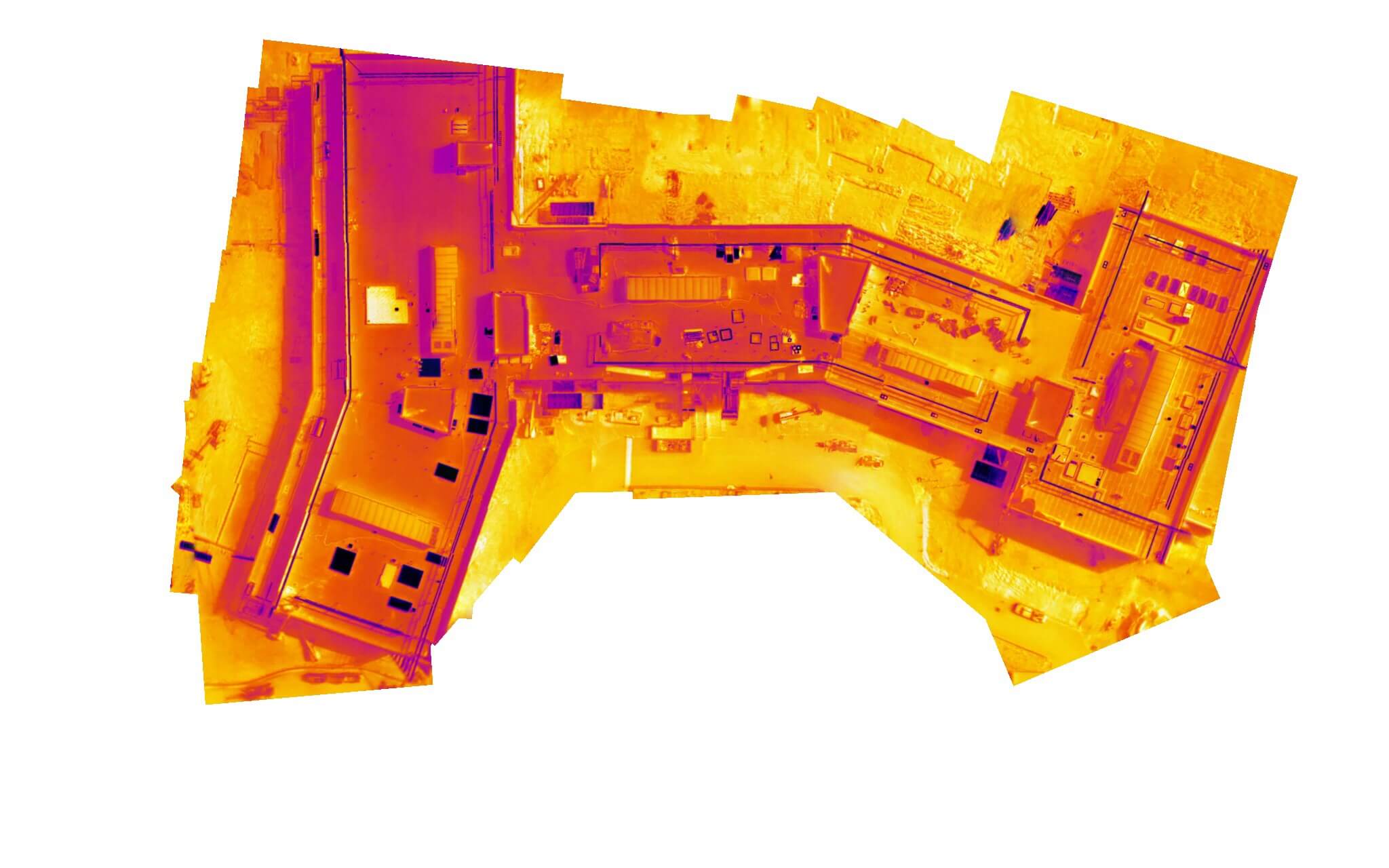
Here is an example of a Thermal Live Map of the roof of a hospital that is under construction.
Required hardware for Thermal Mapping
Availability is restricted by hardware. Requirements:
- Sensor: DJI XT, XTR, XT2 (requires the 640x512 configuration with any lens)
- Drone: DJI M200, M210, or M210 RTK, Inspire 1, Mavic 2 Enterprise Dual.
The Mavic 2 Enterprise Dual is currently not supported for radiometric capture*
Thermal Roof Inspection app is only compatible with the DJI M200/210 & FLIR XT2 or Inspire 1 & Flir XT using the 13mm lens.
Thermal Roof Inspection App
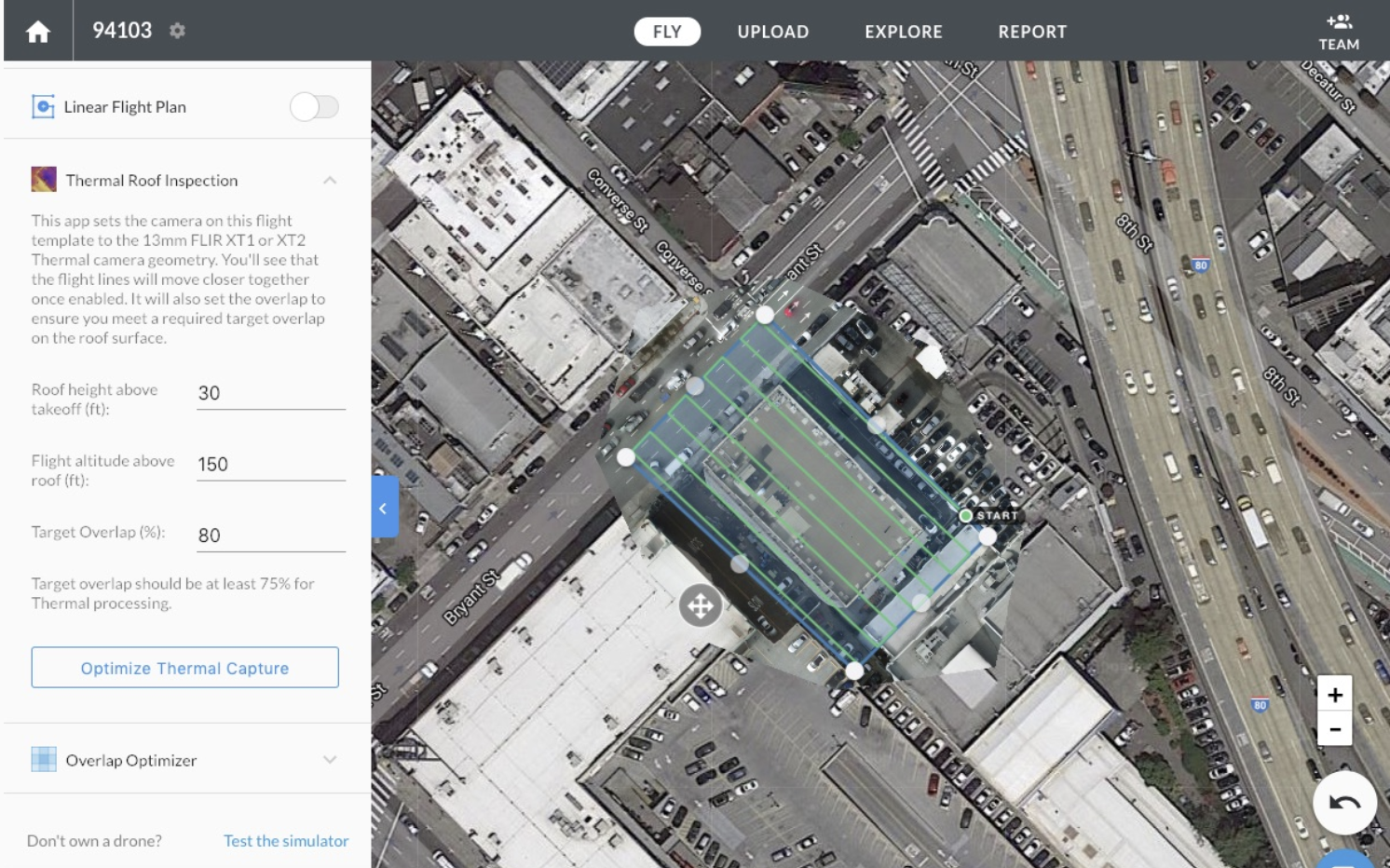
The Thermal Roof Inspection is the recommended way to ensure you are capturing sufficient image overlap for thermal inspection projects.
It is designed specifically for use with the most popular thermal cameras for drones: the DJI M200/210 & Flir XT2/XT, or Inspire 1 & Flir XT.
The app ensures high-overlap images on the rooftop, which will provide the best quality results when the map is processed.
Thermal Radiometric Processing
Enterprise customers who are capturing radiometric thermal images can request access to our Radiometric Thermal Processing. This will provide significantly improved reconstruction results for complex thermal datasets.
We use the absolute temperature data embedded into the images from high-quality Thermal cameras to provide consistent thermal coloring across the map area.
Insurance customers are finding water ingress, roof degradation, weather damage, and low quality installation.
Oil & Gas customers are revealing underground pipelines, leaks, and hotspots.
Solar customers are detecting string outages, faulty modules, and even sub-module defects over hundreds of MW.
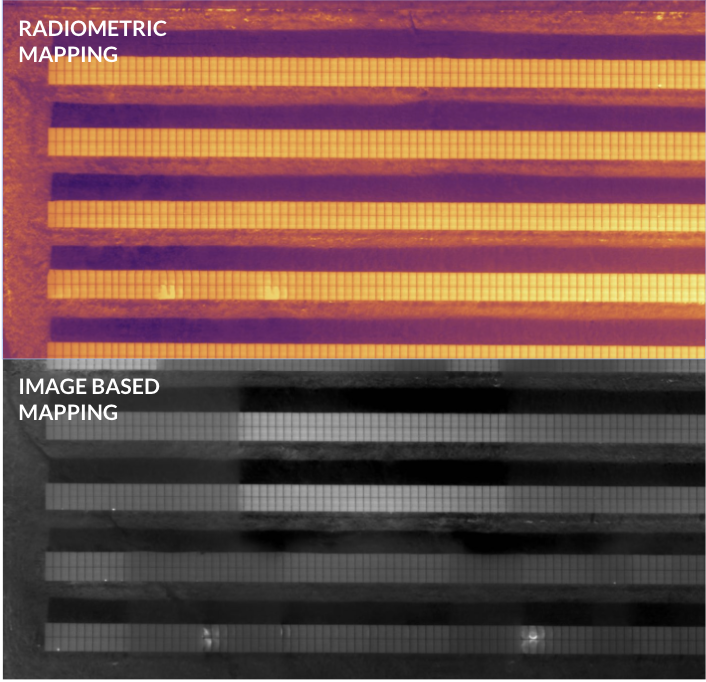
Radiometric Solar Field
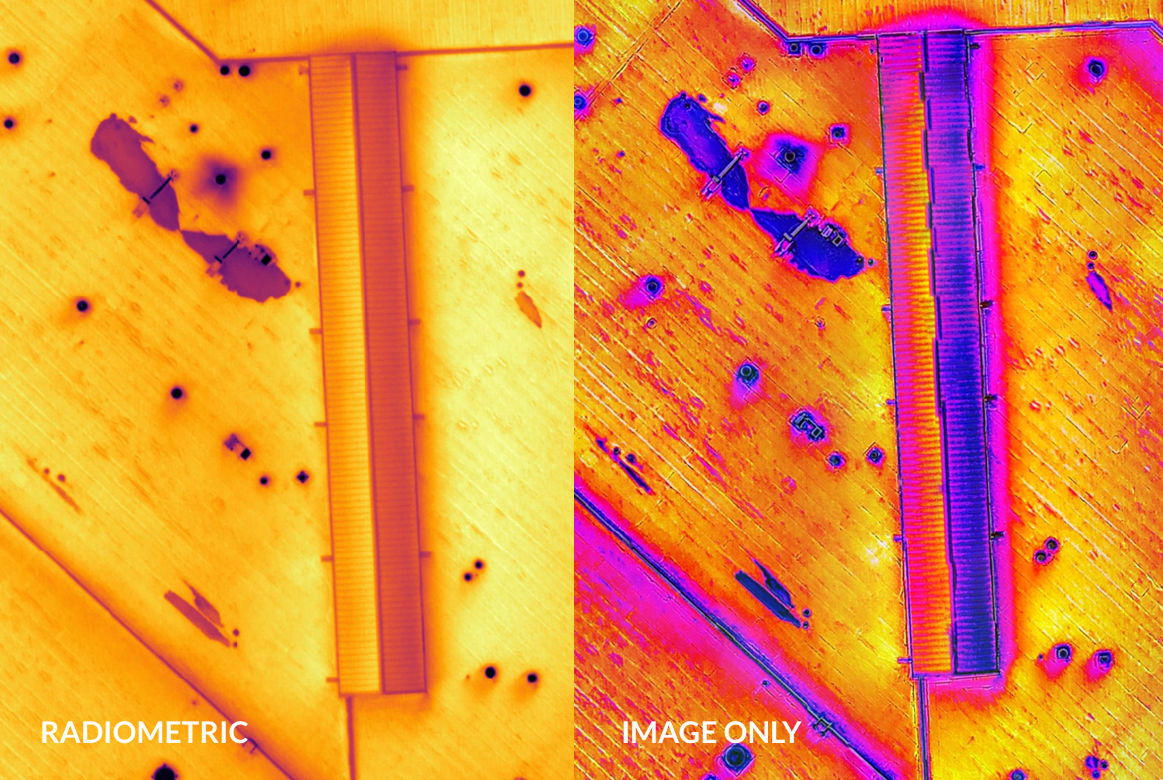
Radiometric Roof Inspection
Thermal Live Map
Thermal Live Map is a quick way to capture a thermal map, so that you can take action in real time. During the live map, camera capture can continue as normal, so uploading is still possible later to upgrade the map quality.
Thermal Live Map is only available for iOS devices manufactured in late 2016 or later (iPhone 7 or iPad Air 2 or newer). The newer the device, the better your experience will be.
Enhanced Thermal Flight
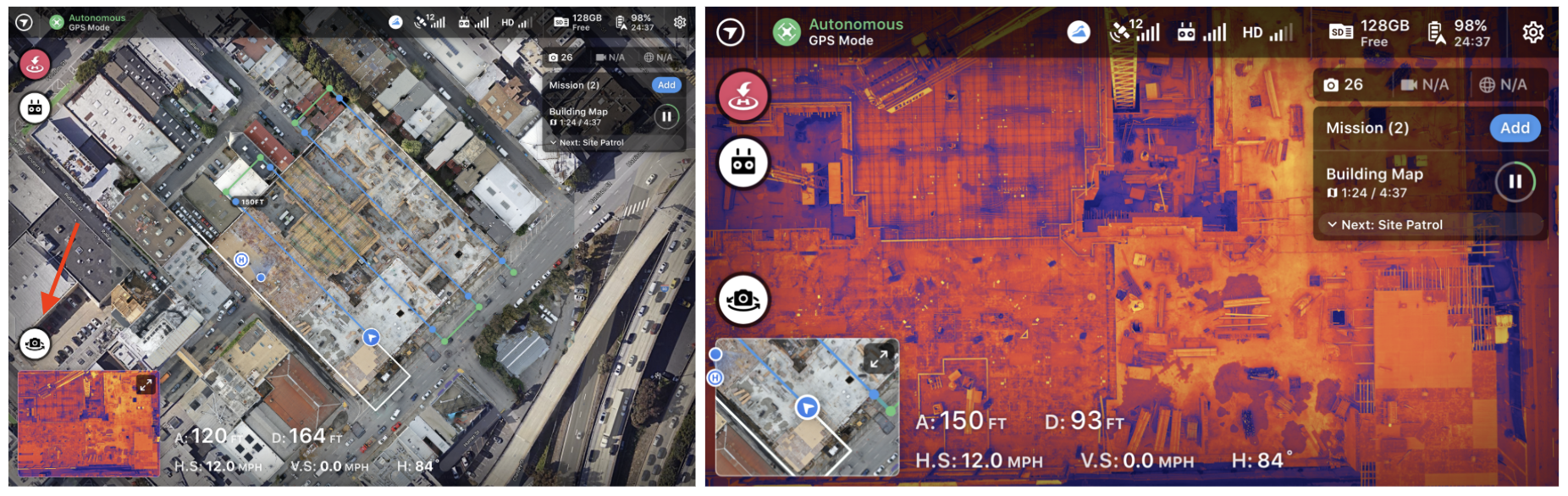
Click on the Camera Toggle to switch between RGB and Thermal View
With Enhanced Thermal Flight Control the pilot has more flexibility while conducting inspections with dual RGB and thermal cameras. Start your Mission in your preferred method of capture, then easily toggle between RGB and thermal while flying to inspect assets or highlight issues that one camera might not easily see. This feature can be used during live mapping or during manual flight.
Getting the best results with Thermal Live Map
The default flight settings will work well for Thermal Live Map and all the normal live map best practices apply. We recommend that you do not fly lower than 150ft (45m) above the object of interest.
When mapping solar panels make sure that your flight plan has legs that are parallel to the rows of panels. Avoid flying during mid-day and times where sunlight is reflected off panels directly toward your camera.
When mapping commercial roofs it is very important that your flight plan is slightly inset from the roof perimeter (see example below). Doing this will greatly reduce mapping artifacts.
For additional tips on drone inspections for commercial roofs, check out this video by FLIR: https://www.flir.com/suas/delta/delta-episode-9/
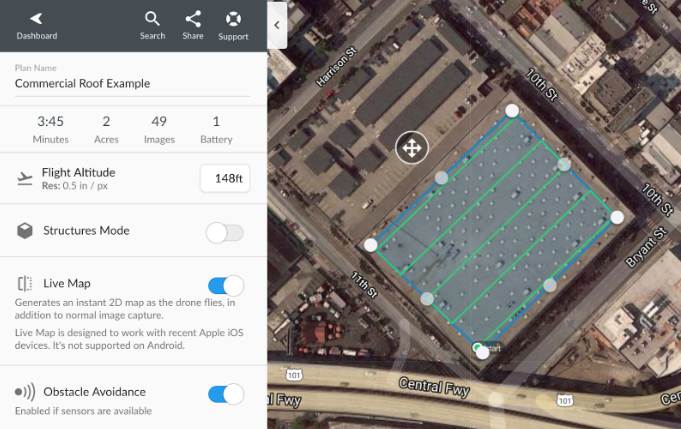
We also recommend avoiding areas that vary more than 75ft (25m) in elevation. Areas with small hills and buildings shouldn’t be a problem, but buildings or terrain taller than 5 stories (50ft or 15m) may cause stitching problems in the Thermal Live Map.
We see a greater rate of success for thermal maps processed in Structures Mode.
Tips for improving the quality of your thermal images
It's recommended that you turn on your drone and plug in your XT/XT2 camera so it can warm up for 3-5 minutes. You should also avoid flying in weather with:
- Wind speeds over 12 mph
- Humidity over 50%
- Any kind of precipitation
Analyzing Thermal Maps
Annotations and measurements work great with Thermal Live Map. Annotations can be used to mark problem areas like the locations of offline or deficient solar panels. Measuring tools can approximate the scale of water damage on a roof when estimating repair costs.

Annotate problem areas like the bubbling on this roof.
Analyzing Radiometric Thermal Maps
Non-radiometric thermal data is great for identifying relative hot and cold spots which could indicate problems you need to address, but it does not allow you to compare actual temperatures. You may also use the side-by-side comparison tool to compare a thermal map of your location to a regular photo map to help you better understand what might be causing a hot or cold spot. Just select your thermal map, enter side by side mode, and select a comparison map that does not have a thermal layer present.
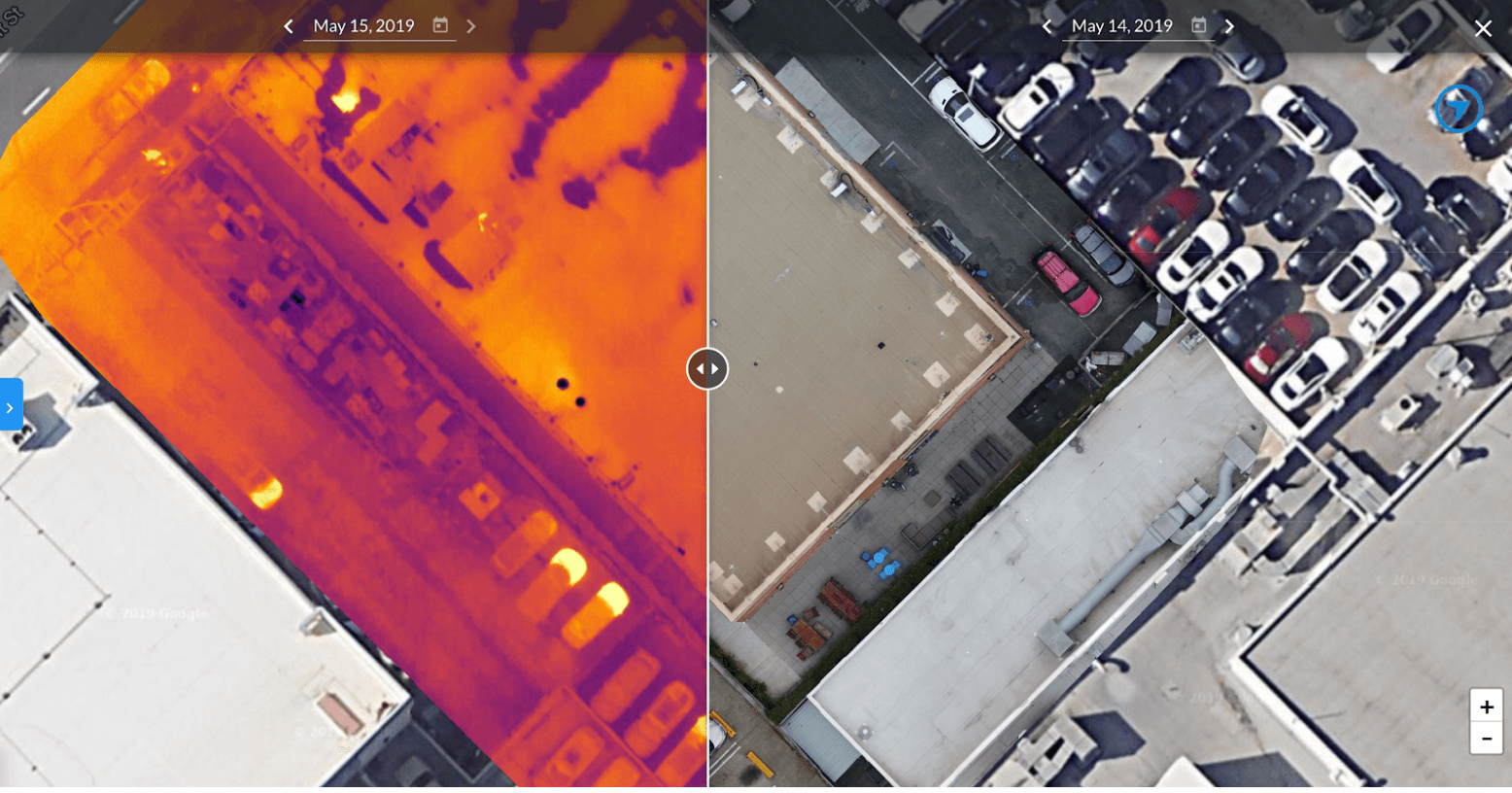
For radiometric thermal maps, you can inspect the temperature at a specific point or adjust your visualization to identify areas of your map that may be outside of acceptable temperature ranges.
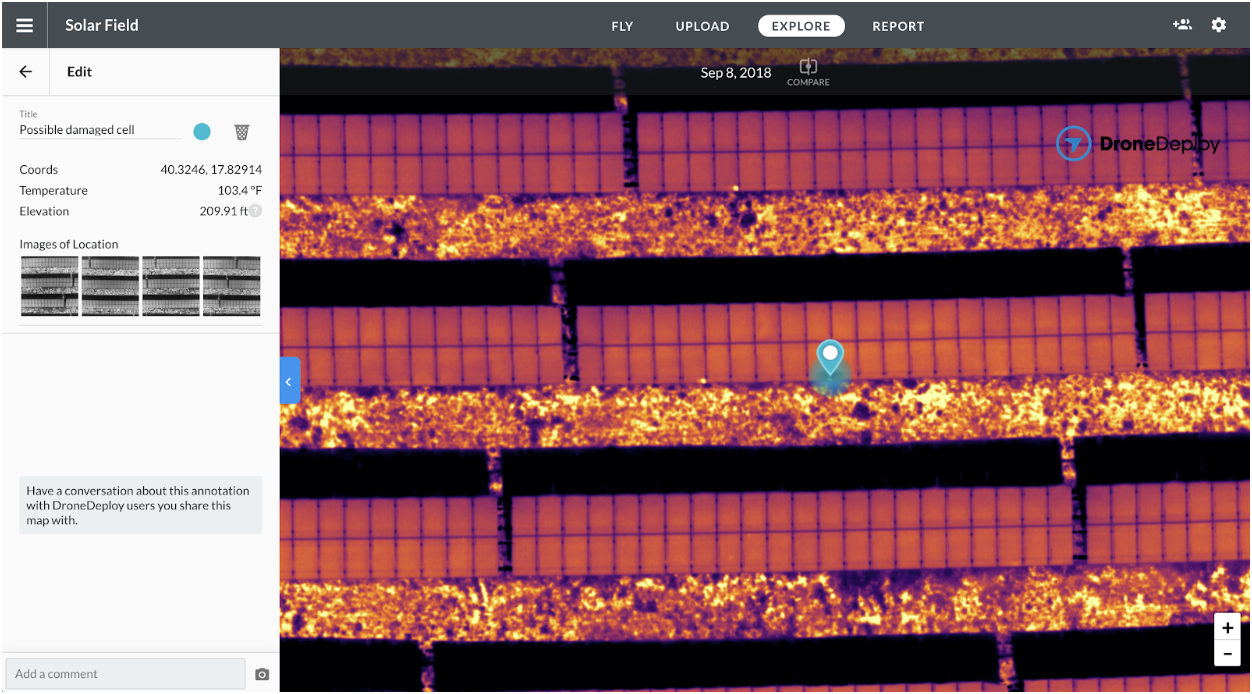
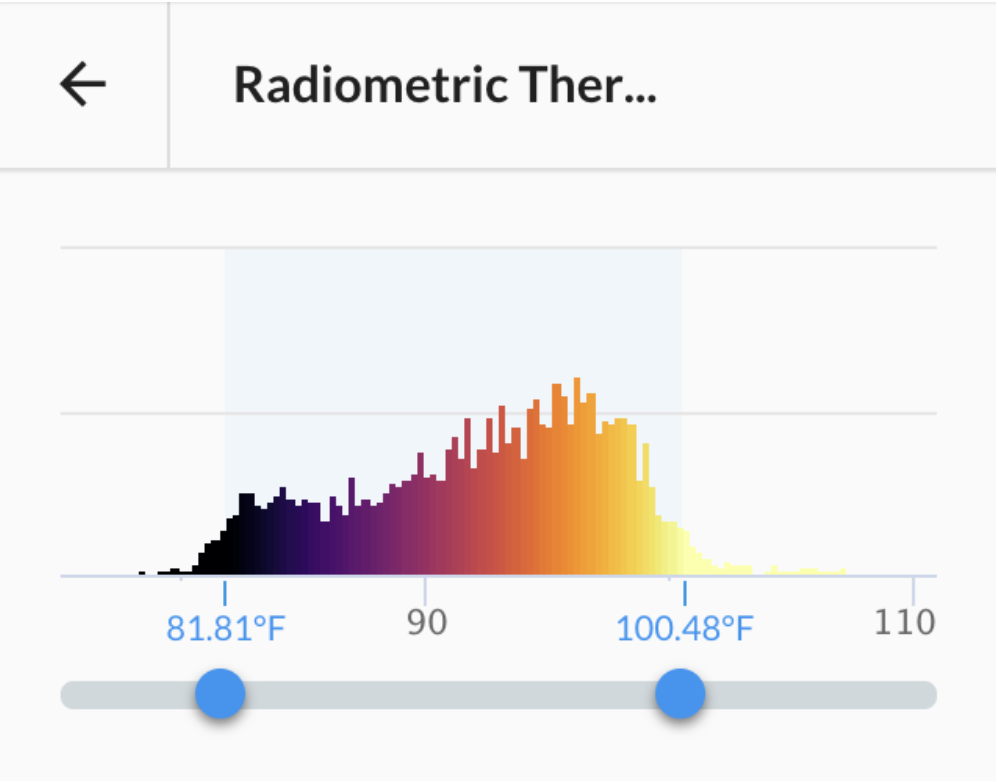
Please keep in mind that your temperature measurements cannot be any more accurate than the sensor used to capture the data.
Mapping resolution for Thermal Map
The resolution (also called ground sampling distance) of a Thermal Live Map depends on your flight altitude and is generally 1/5 of the resolution of an equivalent RGB DroneDeploy map. This is due to the limited resolution of thermal sensors. Here are some resolution examples for different Thermal Mapping altitudes.
| Altitude | Ground Sampling Distance |
|---|---|
| 150ft | 2.5 in/pixel (6 cm/pixel) |
| 250ft | 4 in/pixel (10.5 cm/pixel) |
| 350ft | 6 in/pixel (15 cm/pixel) |
| 400ft | 6.5 in/pixel (17 cm/pixel) |