DJI Restricts Flying in Some Locations!
In order to protect our airports, military bases, national parks, airspace, and critical infrastructure, the DJI GEO Zone System prevents your drone from taking off in designated areas.
The DroneDeploy app does not restrict flying in any location. However, if the DroneDeploy app tries to take off in a location that is restricted by DJI, the DJI mobile SDK will not allow DroneDeploy to take off. The DJI mobile SDK determines locations where flying is restricted based on the DJI fly safe database inside the DJI Go 4 app. The fly safe database is based on the DJI GEO System.
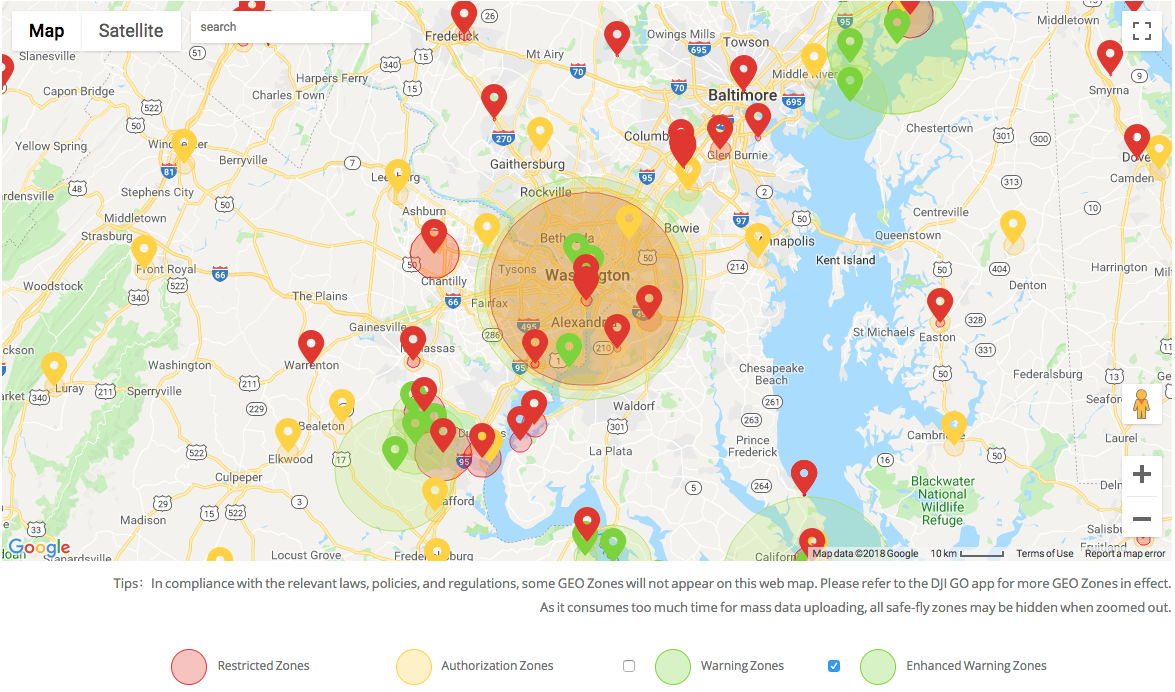
Screenshot of DJI's GEO Zone Map
There are four different zone types on the GEO Zone Map to be aware of. They are listed here:
Restricted Zones (red) - Unable to unlock without manual approval from DJI (contact flysafe@dji.com)
Authorization Zones (yellow) - Can be unlocked by a verified user if you use a drone that uses the DJI Go 4 app (not possible with the original DJI Go app)
Enhanced Warning Zones (green) - Okay to fly with caution, may require unlocking upon takeoff but no pre-authorization is required
Warning Zones (green or not shown on map) - Okay to fly with caution
Unfortunately, we cannot guarantee that you will be able to fly with the DroneDeploy app in NFZs due to technical limitations with DJI's Software Development Kit (SDK), which DroneDeploy is built on. As a result, we may not be able to execute the flight. We have had a few customers follow some instructions that has worked for some(hasn't worked for all) to unlock in the DJI Go app. You must have approval to go through the following steps.
You will need to complete the following steps in your DJI account, and make sure to read this documentation on the DJI website(https://www.dji.com/flysafe/self-unlock).
- Open the DJI GO app.
- GEO popup will appear.
- Log into your DJI account.
- Press the I agree to GEO terms, tick the boxes for I have permission to fly.
- Verify with a text message.
- You should get confirmation.
- Close the DJI GO app.
- Plan your flight on DD.
- Press take off in DD.
If you are unable to fly with the DroneDeploy app after completing these DJI steps, we recommend using DJI GS Pro app (free for iOS users) to plan and fly your waypoint mission.
Please always check your local regulations and fly safe!