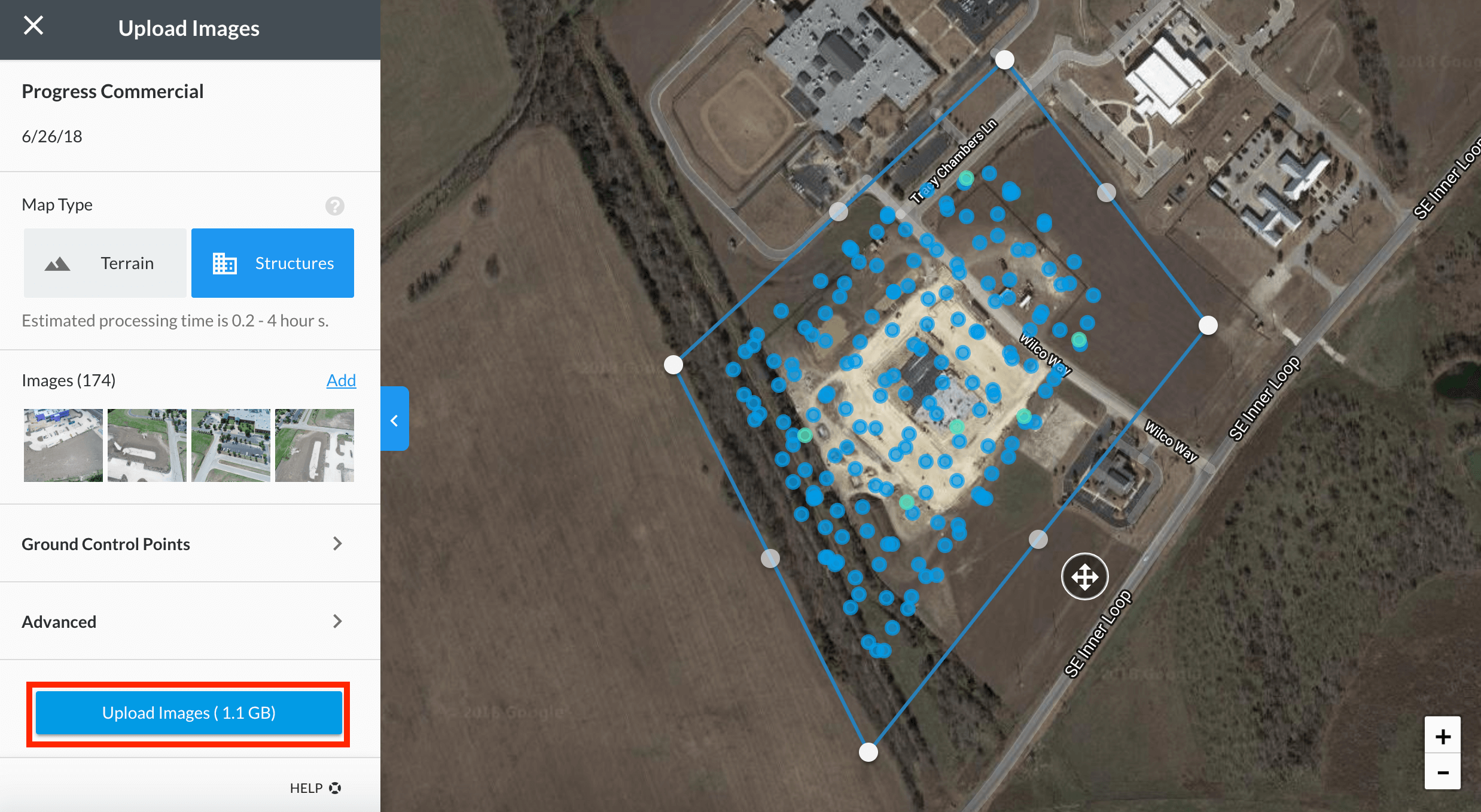
Cancel Your Upload
You can cancel an upload whenever you need to by clicking on the "Cancel" option and hit "RESUME LATER" to pause the upload process.
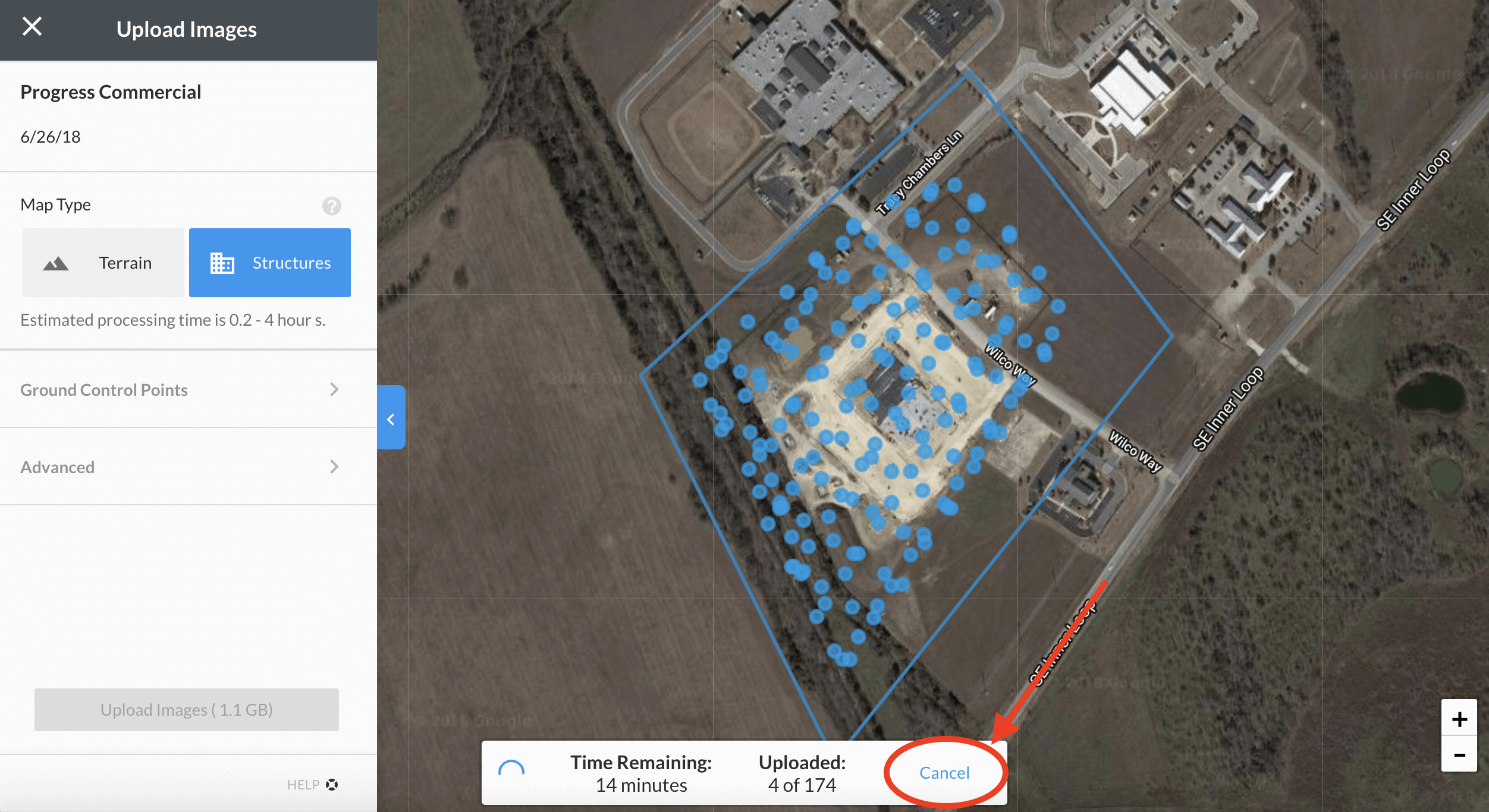
Click "Cancel" to pause the upload process
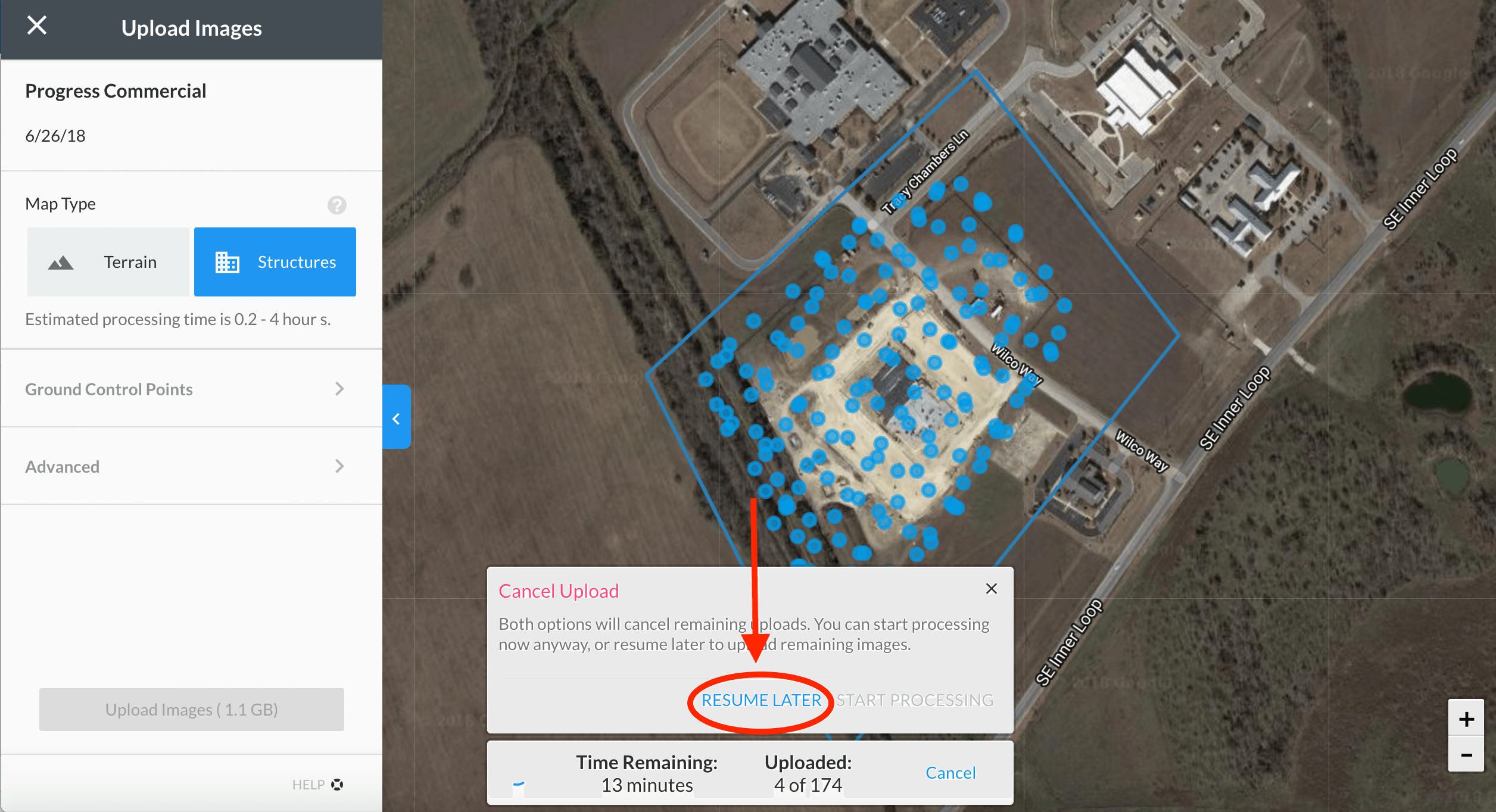
Click "Resume Later" to confirm
Resume Image Upload
To resume the image upload, please select the map on your dashboard. The status should be changed to Resume.
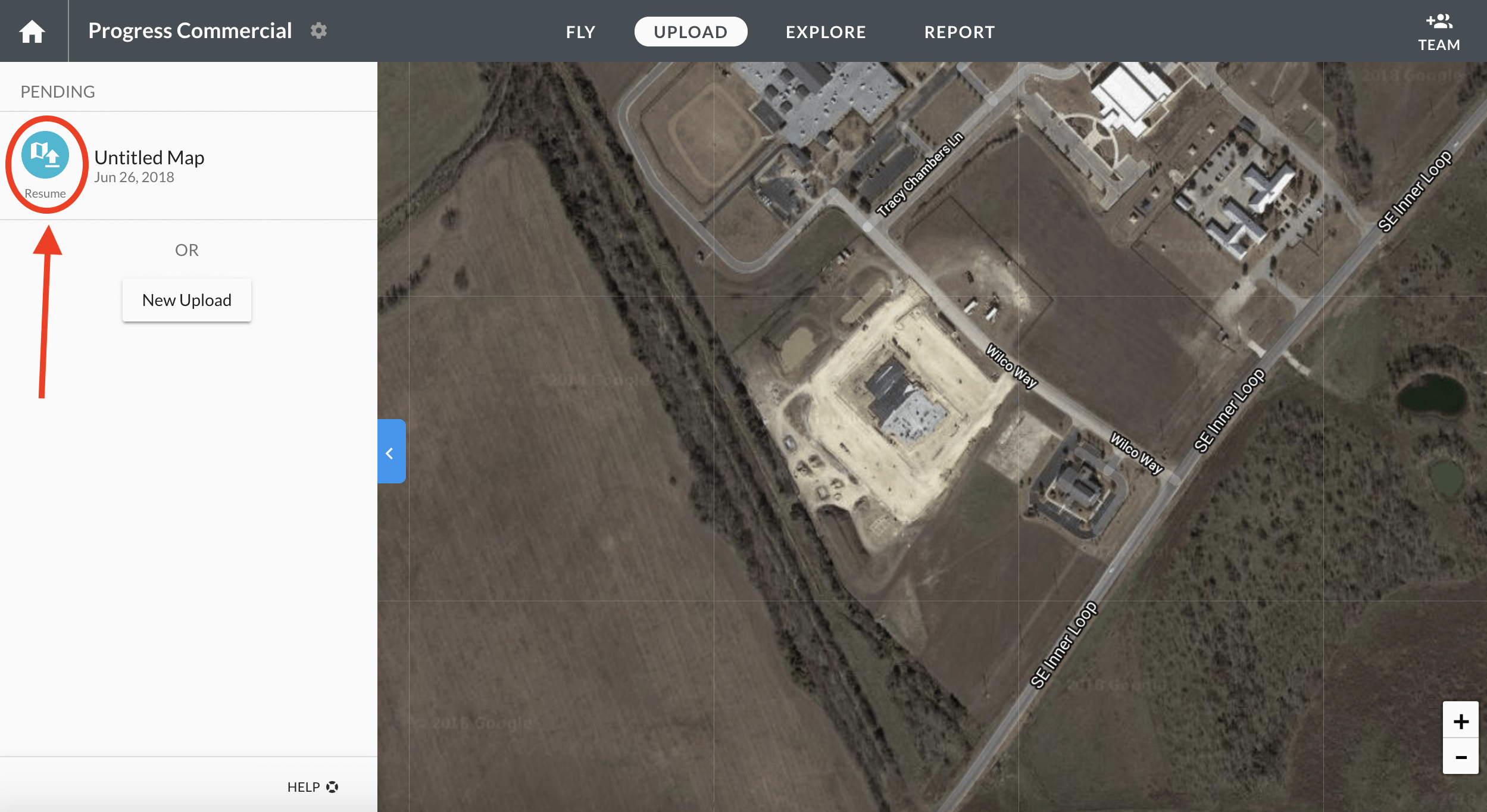
The status of the upload has changed to "Resume"
Reselect All Of Your Images
Once you have clicked on the "Resume" icon, you can see how many images are being uploaded so far. The images location is shown on the map as green dots. Click on "Select Photos" to select ALL the images that make up your upload. We will automatically skip any images you've already uploaded, so you don't need to pick them carefully.
When you cancel an upload, or if you close your browser, we lose access to the photos on your computer that have not been uploaded. This step is required so that we can continue the process.
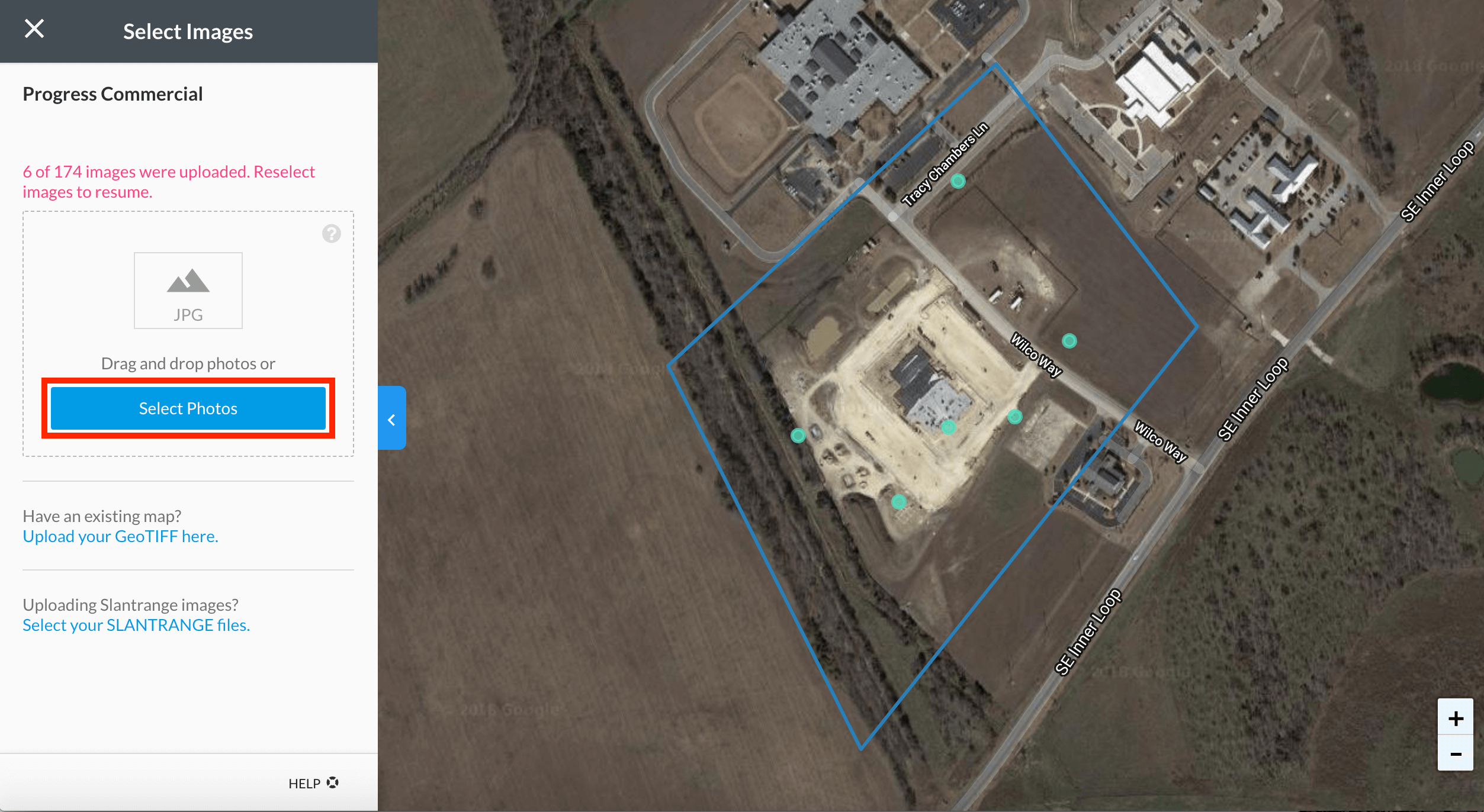
Click on "Select Photos" to reselect the set of images.
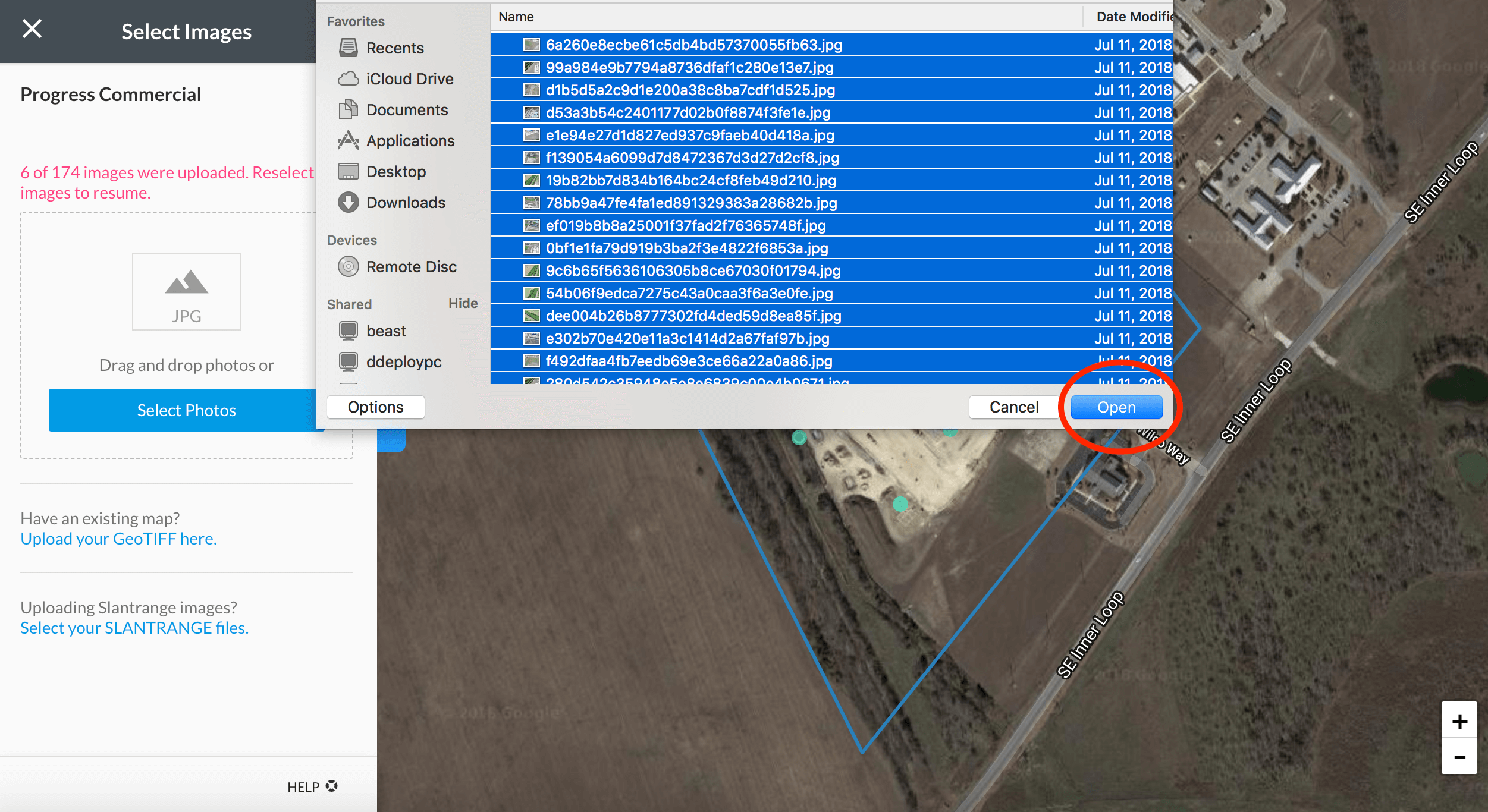
Select all the images from your computer
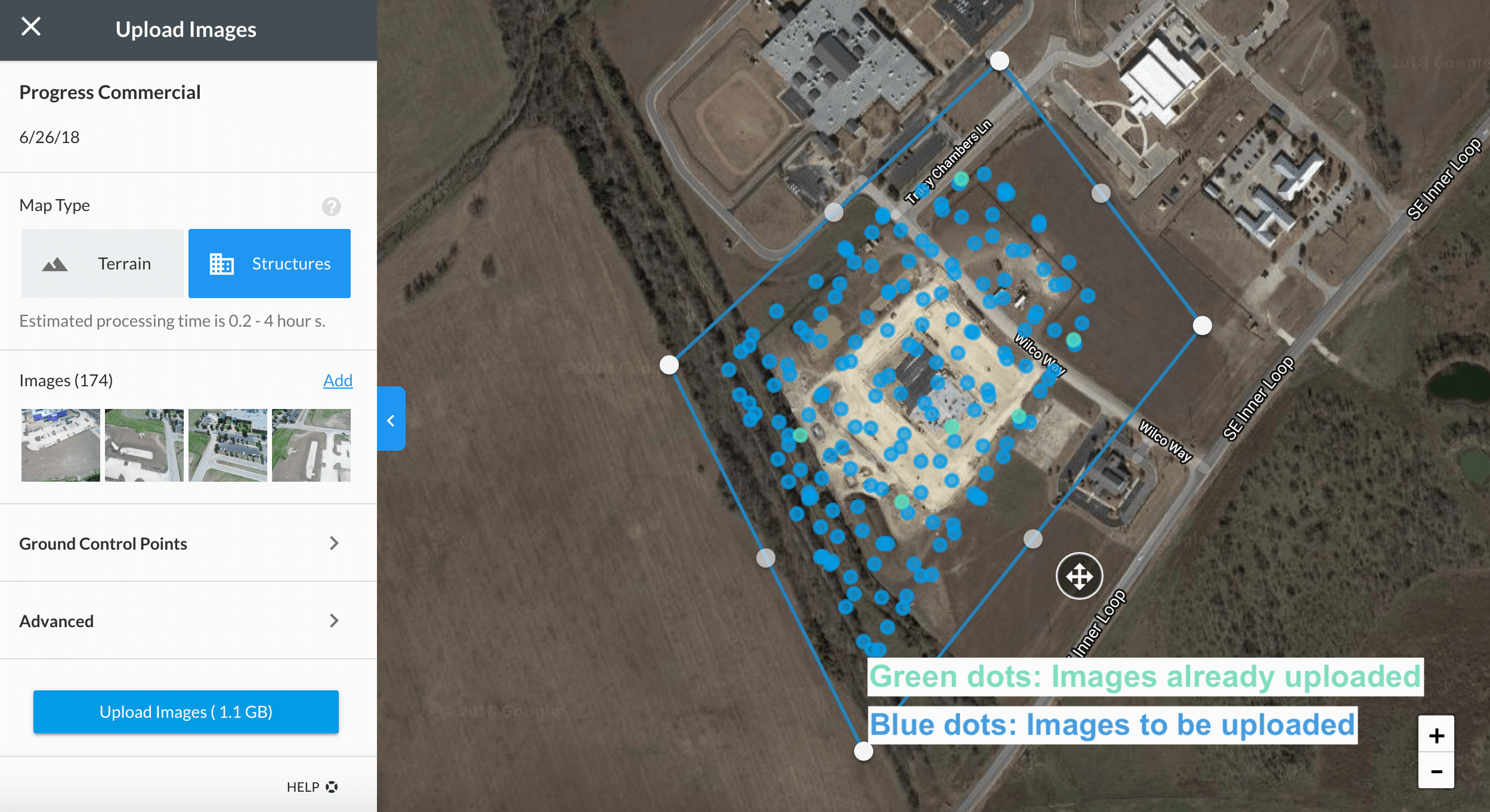
All the image markers should then reappear on the map
Then, you can continue your upload: