Overview
A 360 walkthrough can be created by uploading a 360 video to DroneDeploy. Walkthroughs are a powerful feature that can be used to virtually view your entire job-site, compare changes over time and create issues and reporting using the standard inspections tools. We support a wide variety of cameras as long as the video is in the correct format. See below for details.
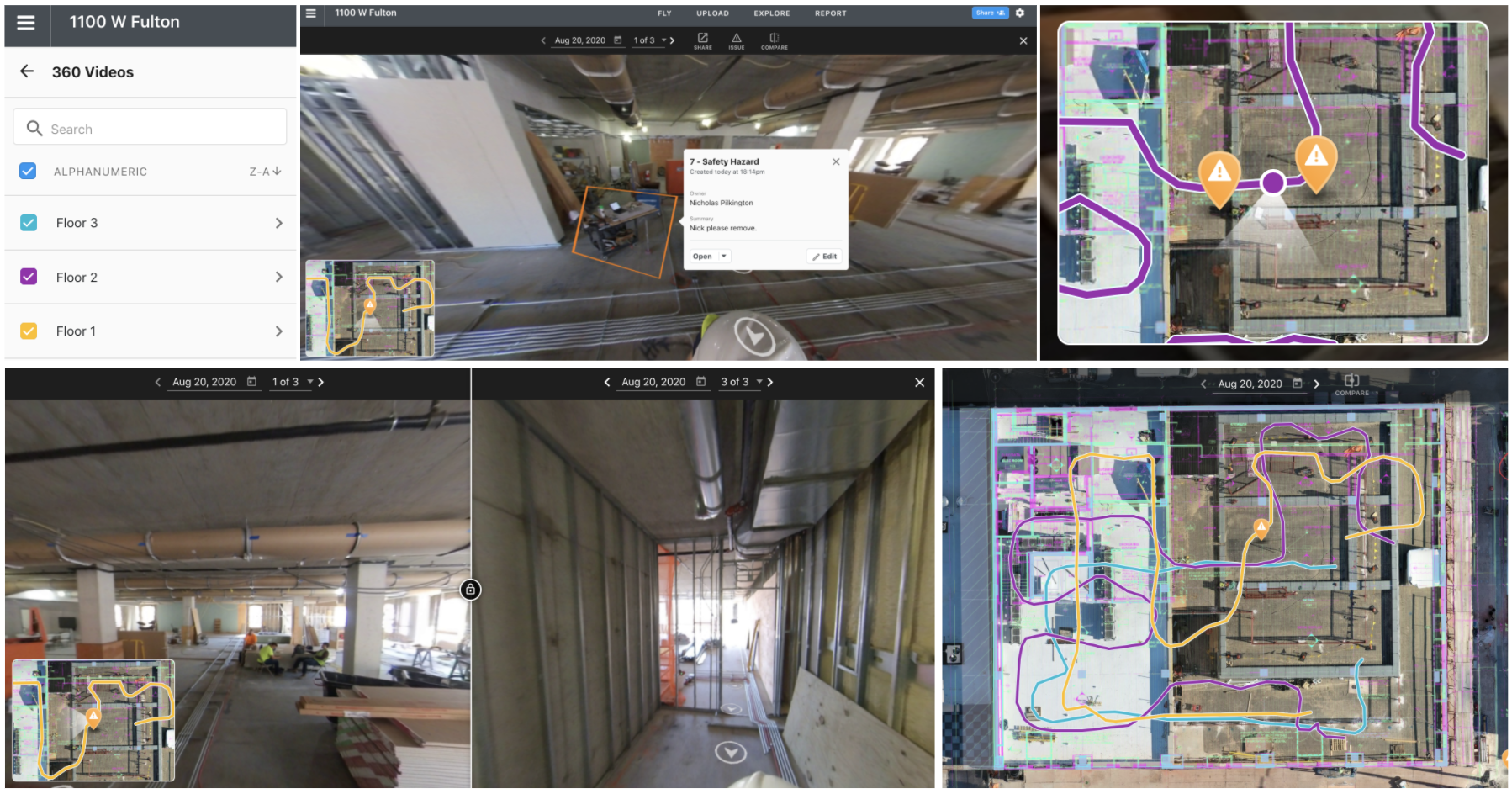
Overview, side-by-side comparison, issue creation and inspection.
Cameras and File Formats
It is important to use the supported camera and file format for creating great walkthrough. While DroneDeploy support most 360 cameras we recommend the Insta360 cameras for their good quality footage and reasonable cost.
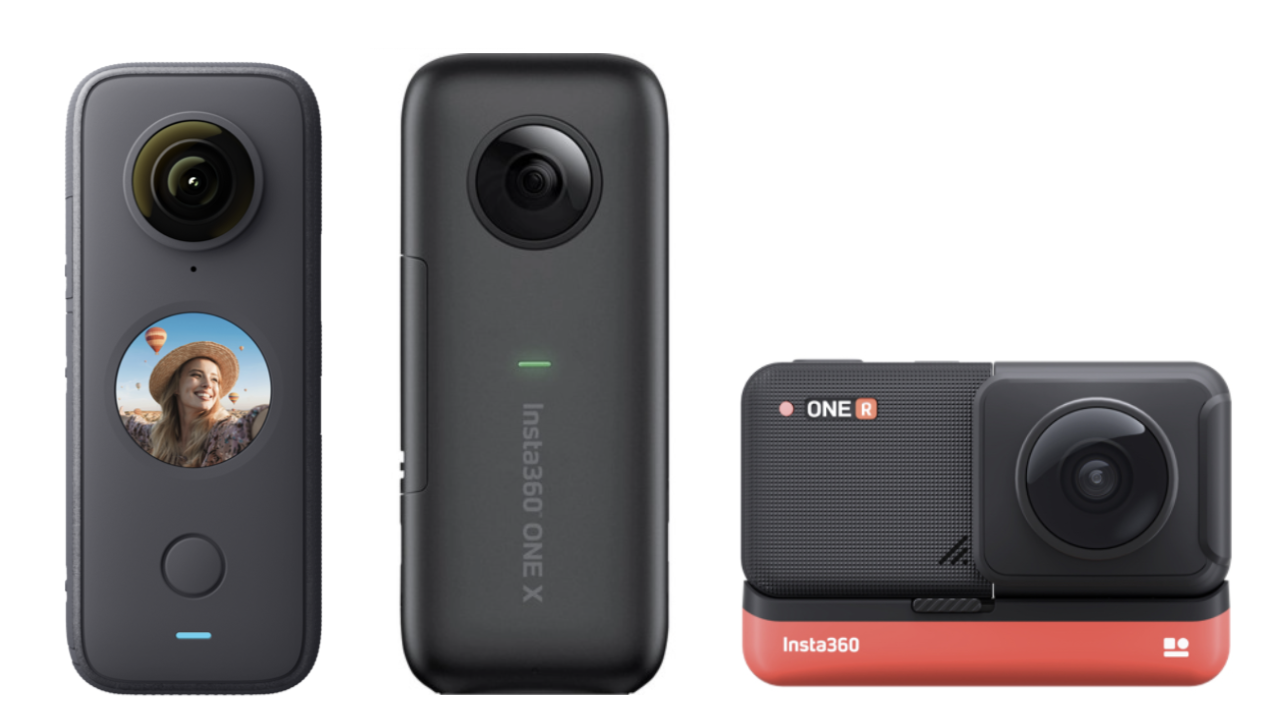
The Insta360 cameras ONE X2, ONEX, ONE R
Depending on the camera used you can either upload the files directly from the SD card (Insta360 cameras) or convert them to the correct format (Ricoh, GoPro, Garmin) before uploading them.
*To produce the INSV pair, we recommend choosing a 5.7k or higher resolution (with any frame rate):
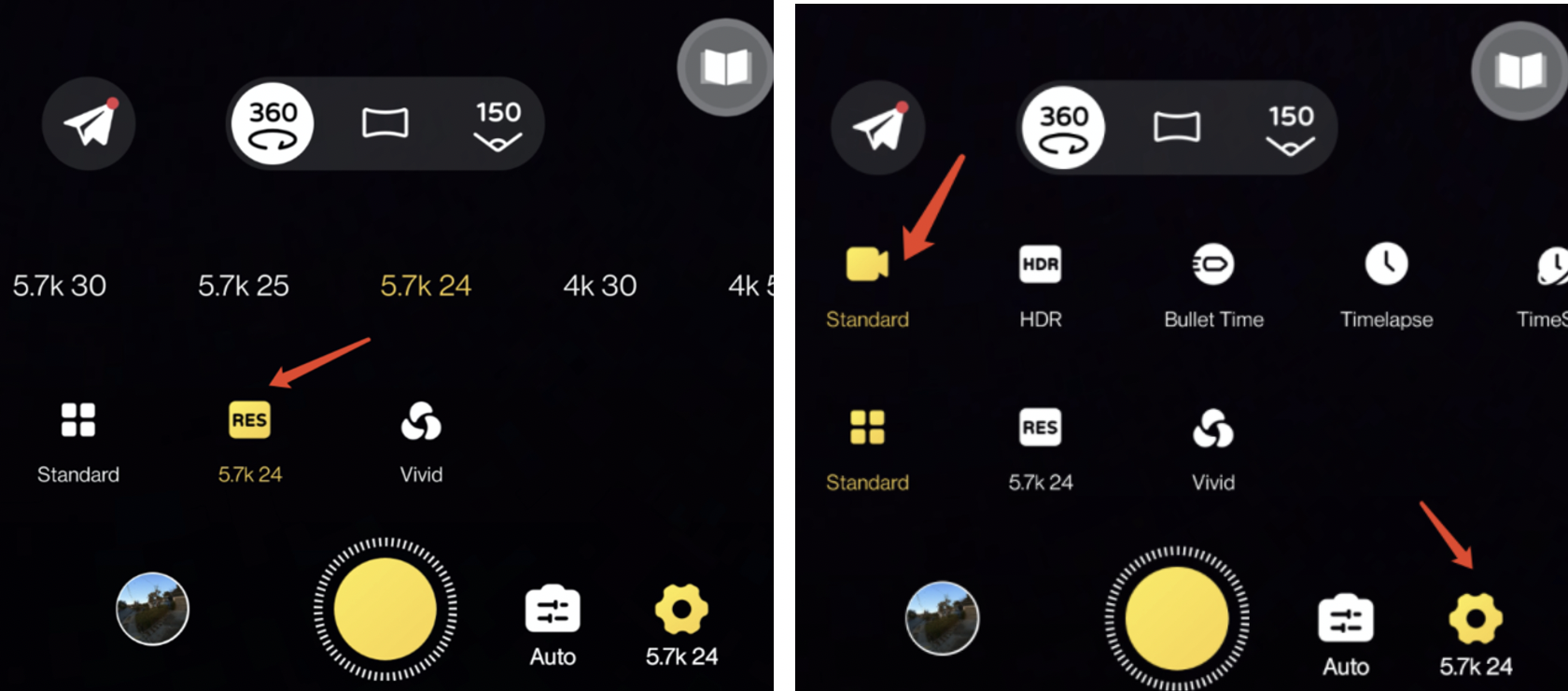

Either upload and matching pair of .INSV files or upload a .MP4 file.
If you are uploading an .MP4 file (non Insta360 cameras) please ensure that it is an EQUIRECTANGULAR video. The image below shows an example of three common formats of video. DroneDeploy only supports one of them so you will need to use the accompanying software of your 360 camera to convert before upload.
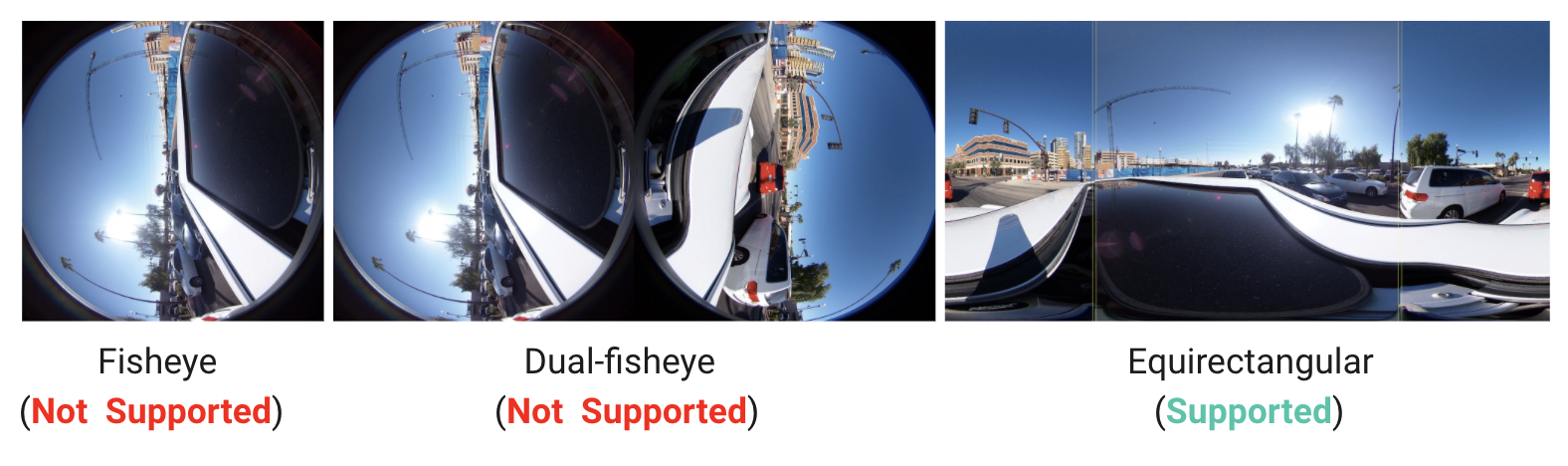
Dual-fisheye video is not currently support. Please convert to Equirectangular using your camera software before uploading
Capture Best Practices
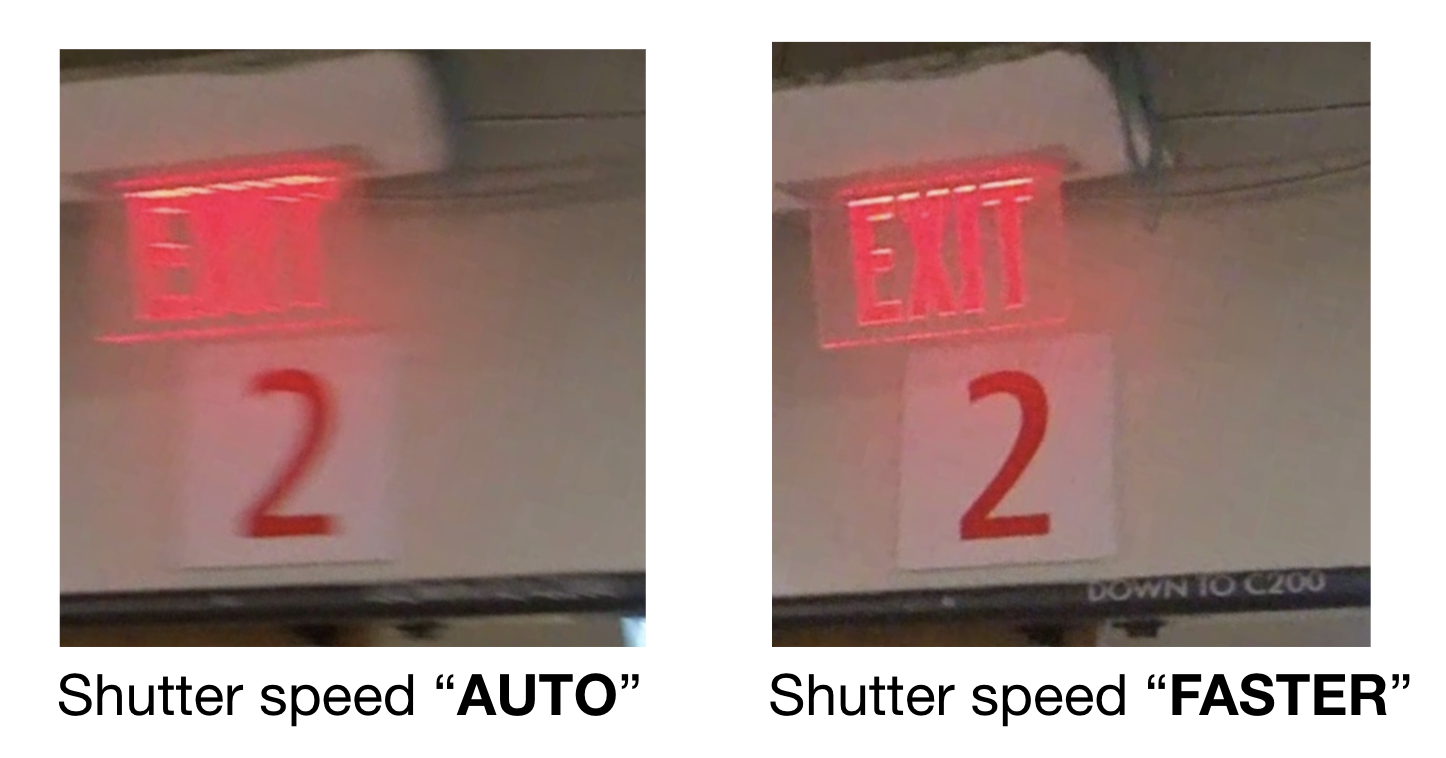
Simply hit record on your video camera and collect walkthrough videos. Cameras can be held with a monopod, mounted on PPE, or vehicle-mounted. Where possible move around the site at an even pace and limit jerky movements or areas of very low light. We recommend the Insta360 cameras.
Upload and Processing
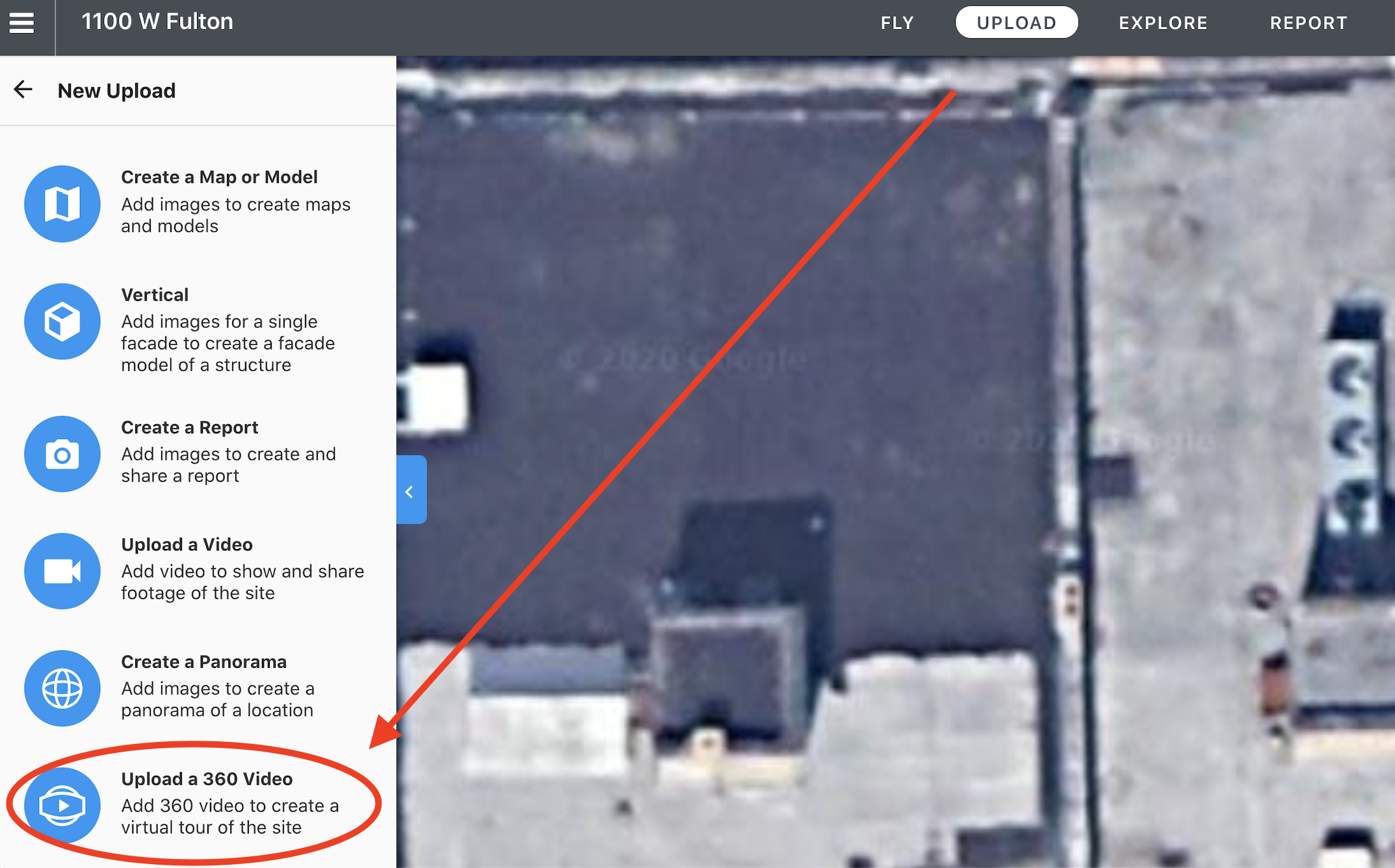
After ensuring you have 360 videos in the correct format (see 'Supported Video Formats' above). Simply click upload to upload the file(s) to DroneDeploy.
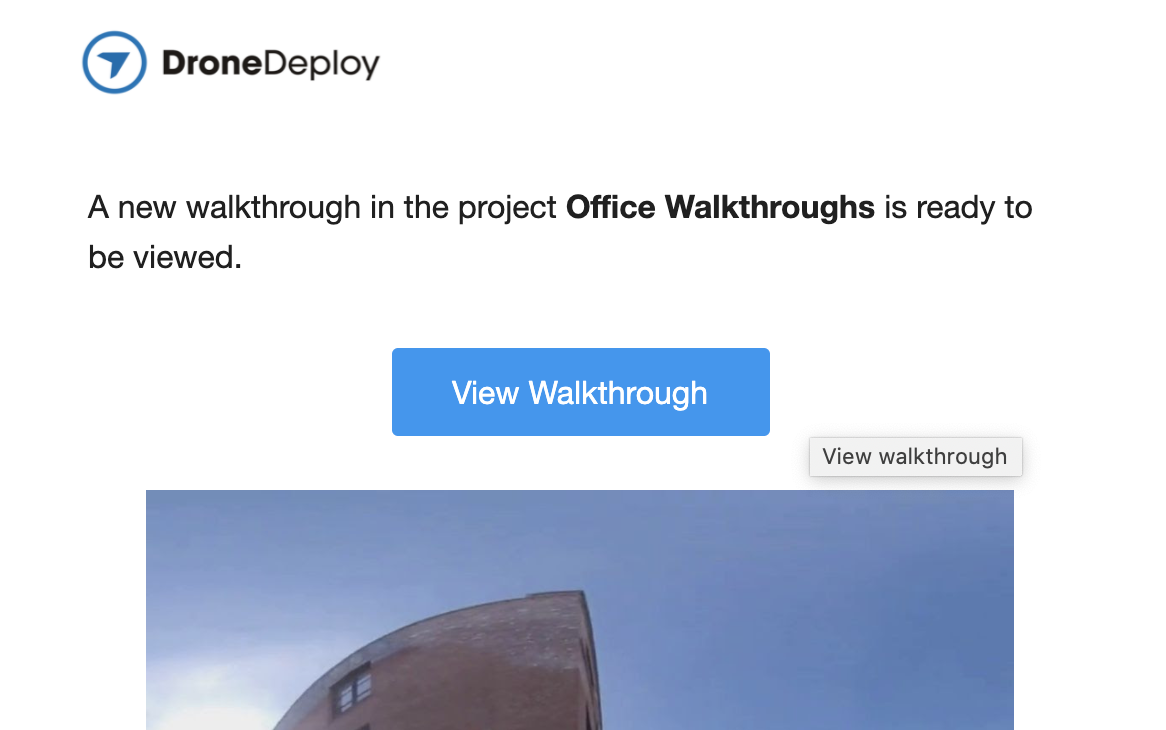
When your walkthrough is ready you will receive an email. Click the View Walkthough button to align it to your site and explore the video.
Check out the following video for a full example of what you can do with walkthroughs!