Learn how to create annotations on your DroneDeploy maps to analyze them and share the results.
Overview of the Toolbox
If you look at the sidebar on the left, you can see Annotations and Tools options:

Annotations and Tools options with labels for the different tools.
We have labeled them in the image above, and will be discussing each one below:
- Location marker and Elevation at a Point
- Distance tool and Elevation profile
- Area measurement and Surface area
- Volume Calculation
- Show/Hide Annotations
- Filtering and Sorting Annotations
- Changing Annotation Color
- Sharing Annotations
- Deleting Annotations
Before we dig into the different annotation types, it's worth going over the general annotation controls.
Annotation Controls
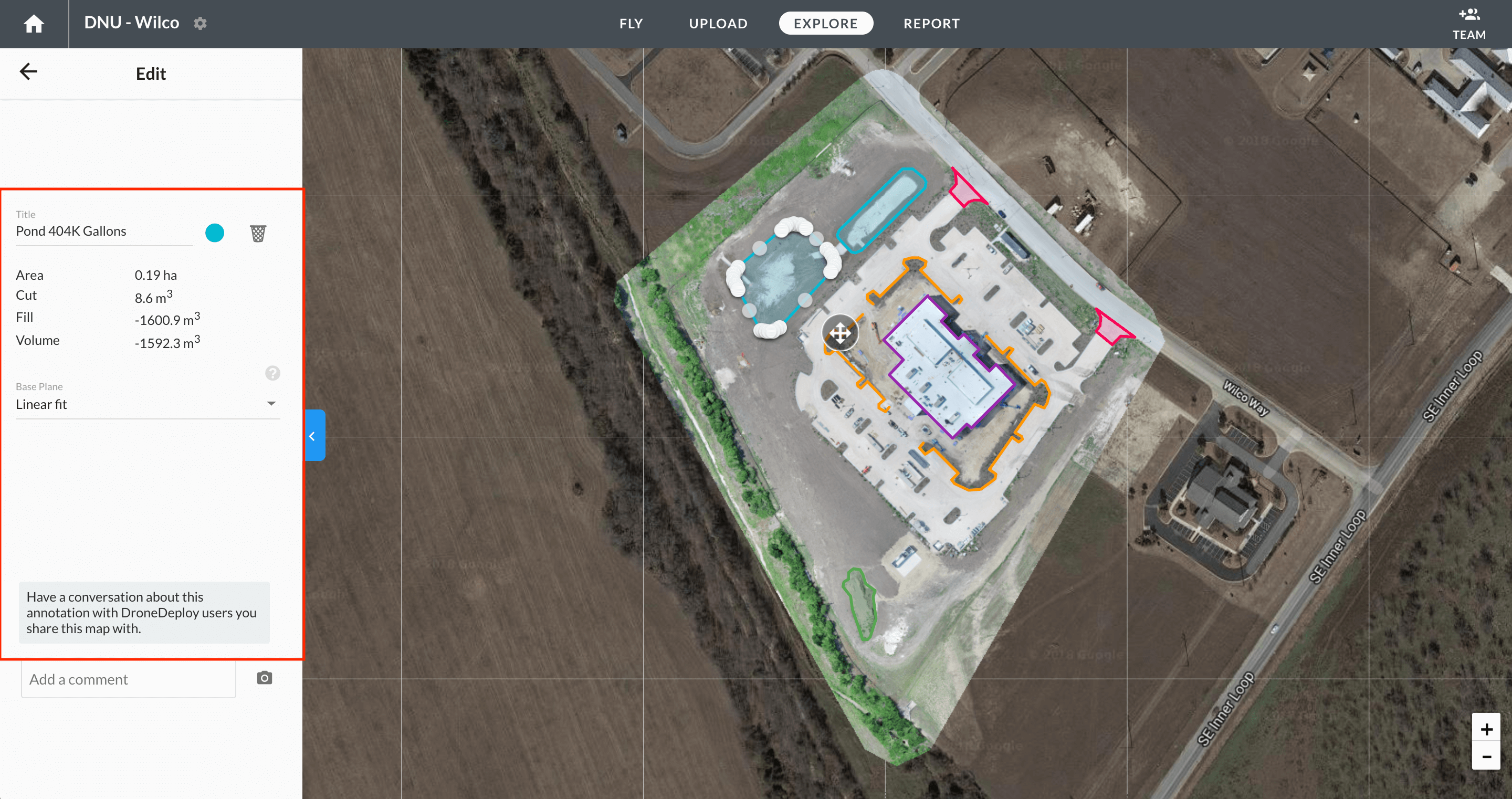
Here is an example annotation (from the Volume annotation example).
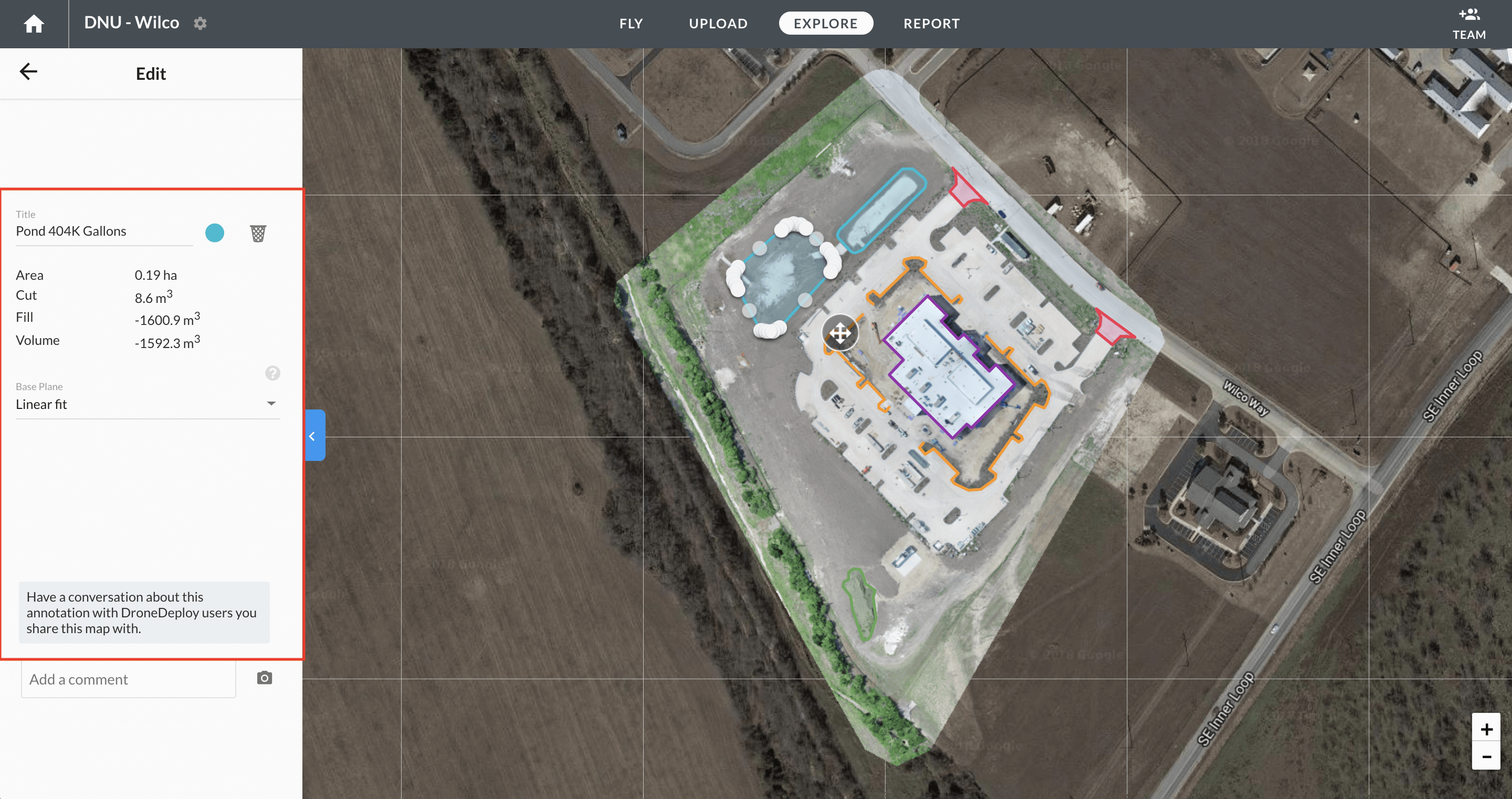
Example annotation using the Volume tool.
Location Marker
If you want to take note of a specific point, this is the tool for you. Once selected, you'll be asked to select a point on the map:
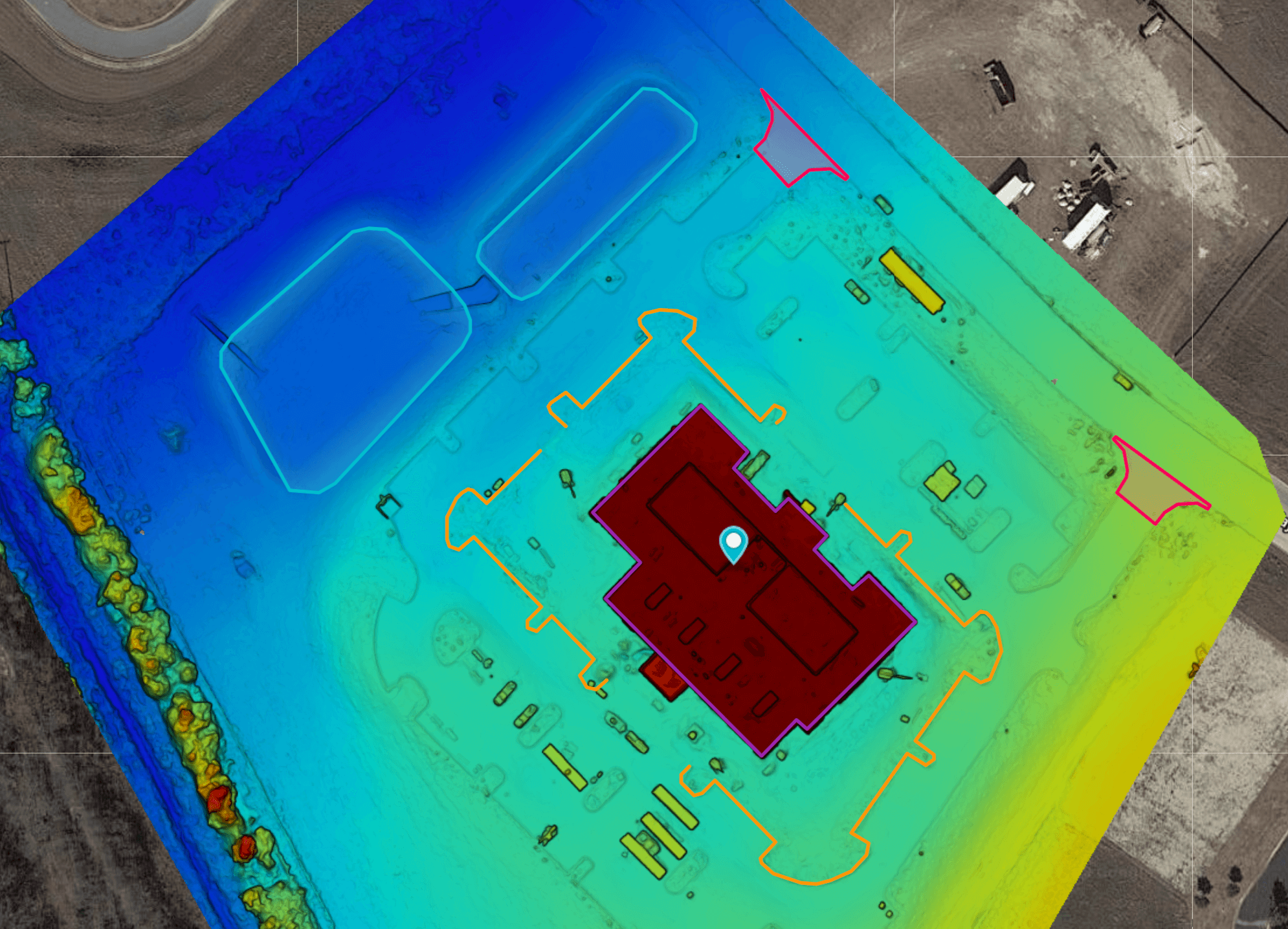
Moving it to a location of interest and clicking that location will generate a marker:
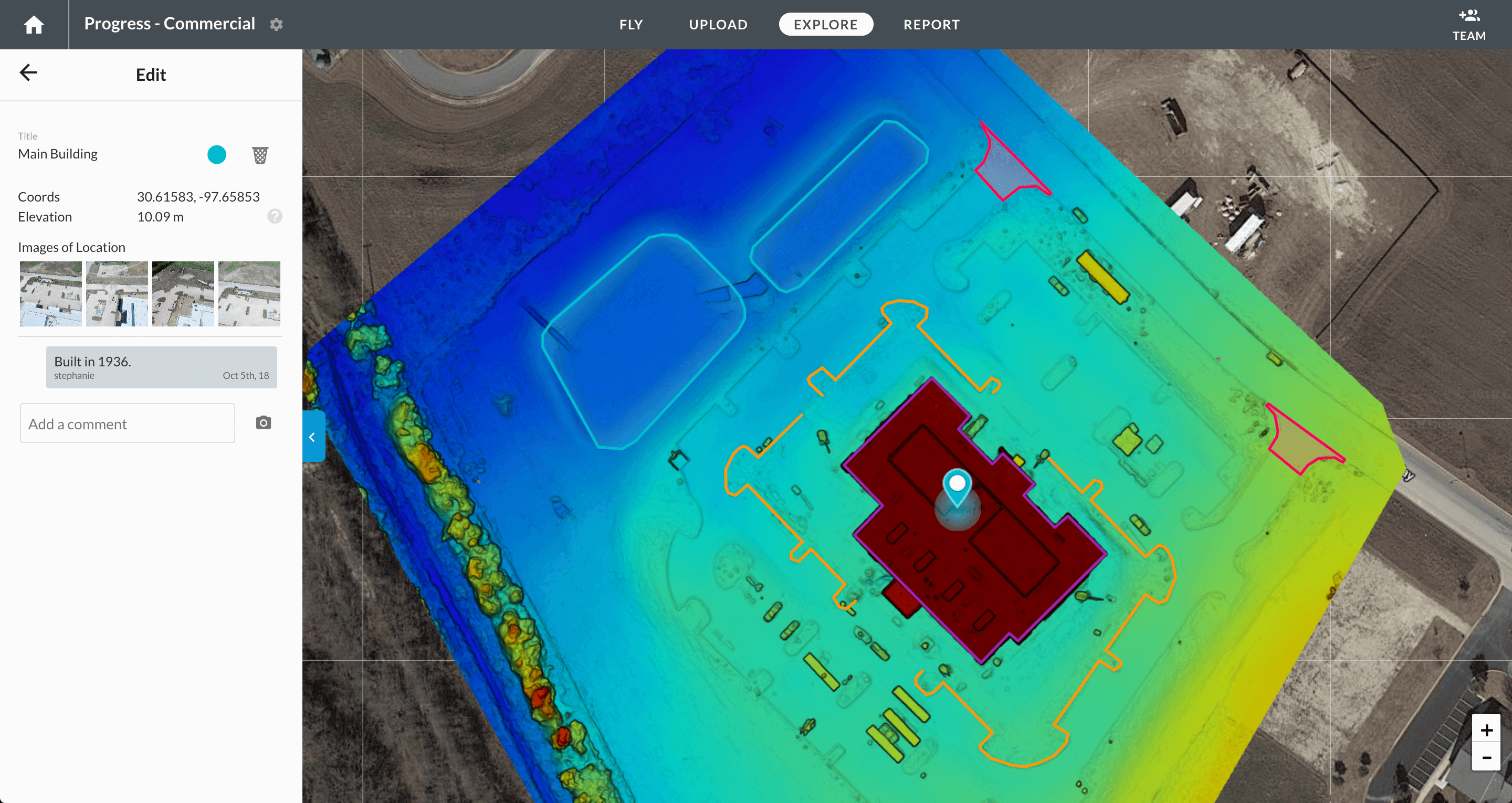
A blue marker showing the building. Notice the lat/long, comment box, and color options.
Here, we have selected to annotate the building. When clicking, you will now see the latitude and longitude for that location, a text box in which to add notes, and the annotation controls. Once the comment is saved, you will see your name and date of the comment. If you click on the images you will also be able to view your photos at native resolution.
Elevation at a Point
You can also find the elevation of a single point in your map by simply placing a location marker on the point of interest.
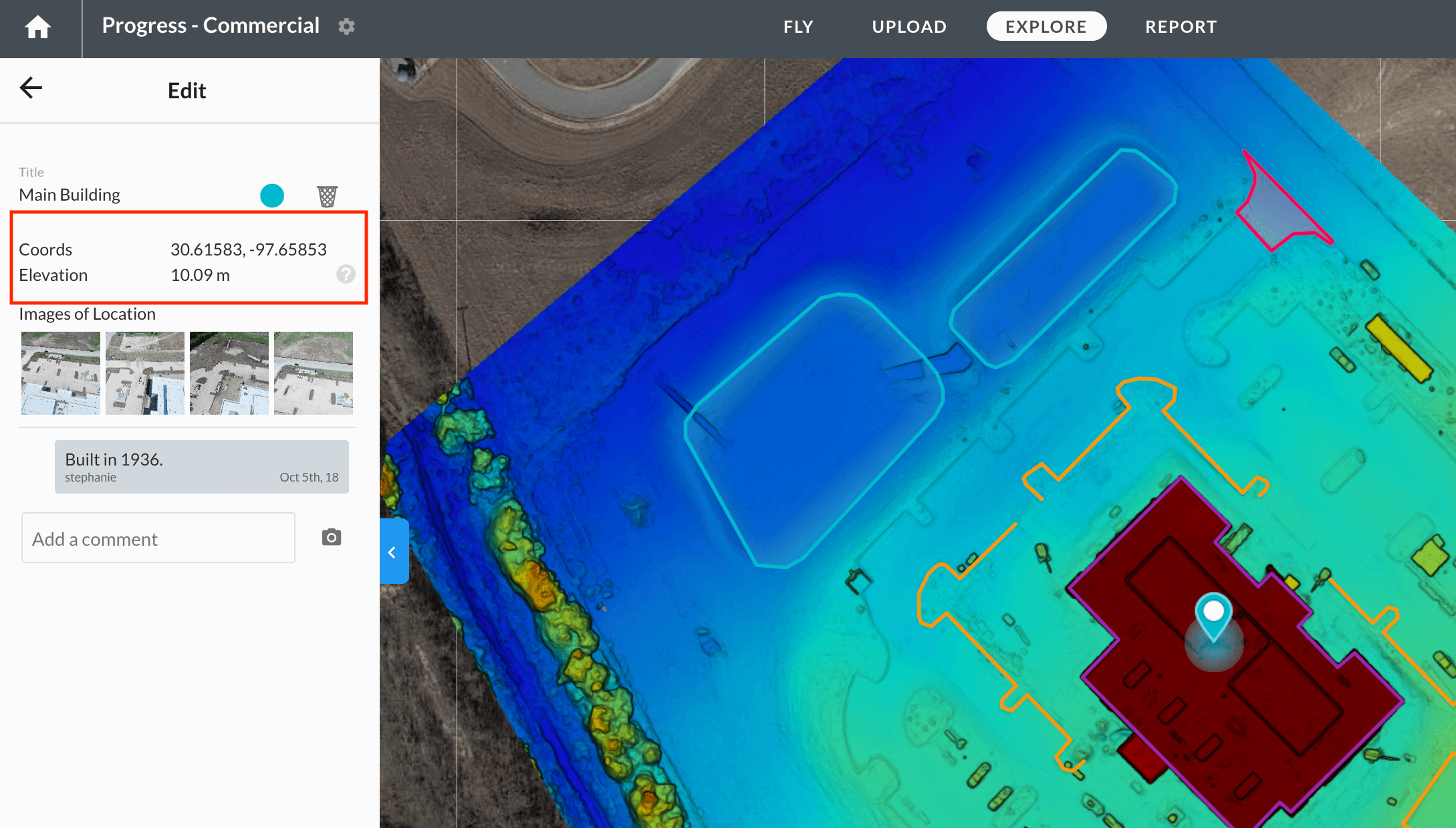
Elevation at location marker.
Distance Tool
The Distance or line tool will allow you to measure the length of a straight line or a series of lines.
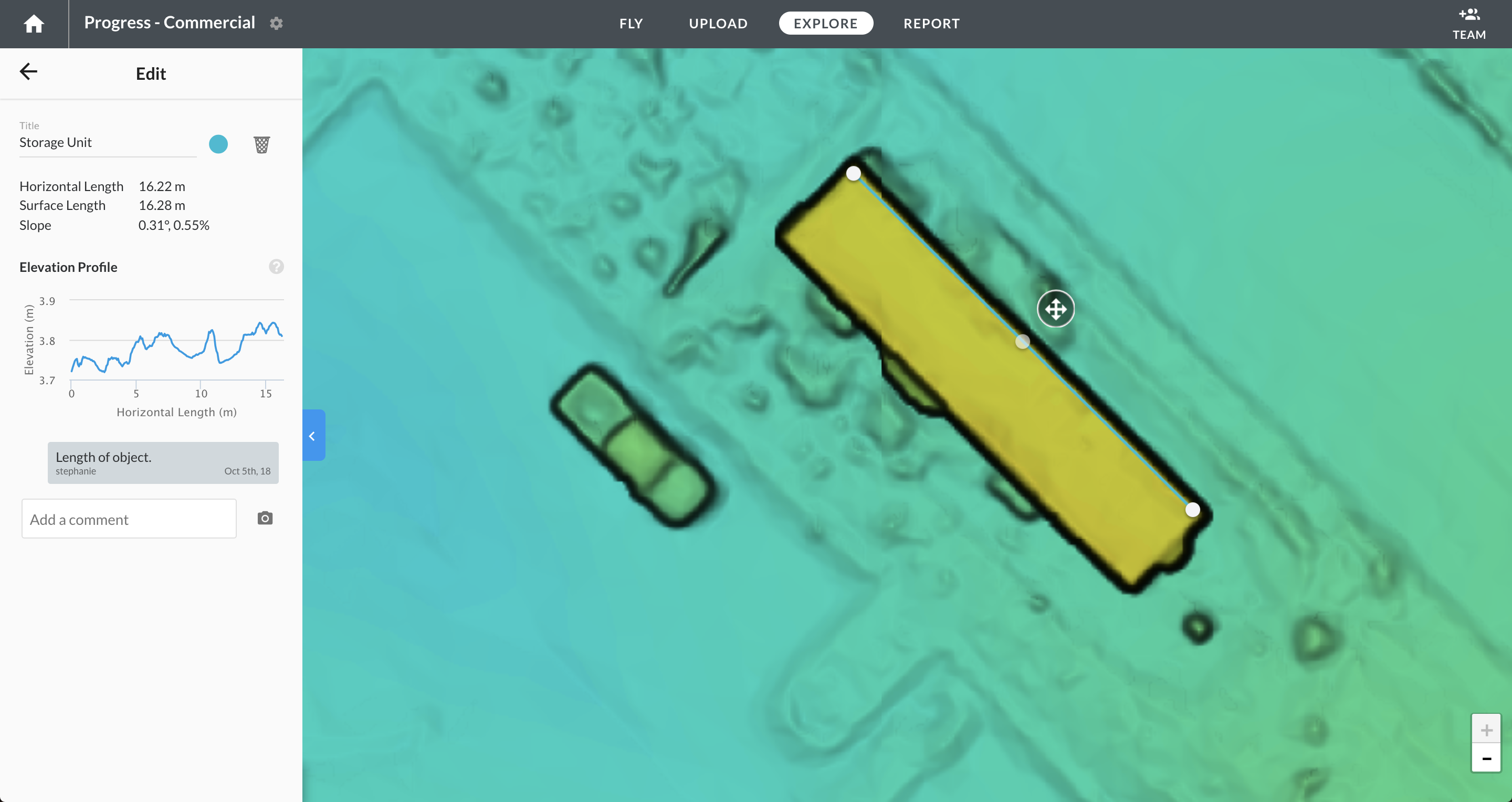
A blue line measuring the length of the object.
Here we measure the length of the field to be 4560.8 feet.
Elevation Profile
View the elevation profile or cross-section for a single segment of a line drawn with the annotations tool. This is helpful to:
-Measure the height of certain features
-Measure the slope of the line segment (height change/distance)
-See if an area is flat/bumpy/sloped
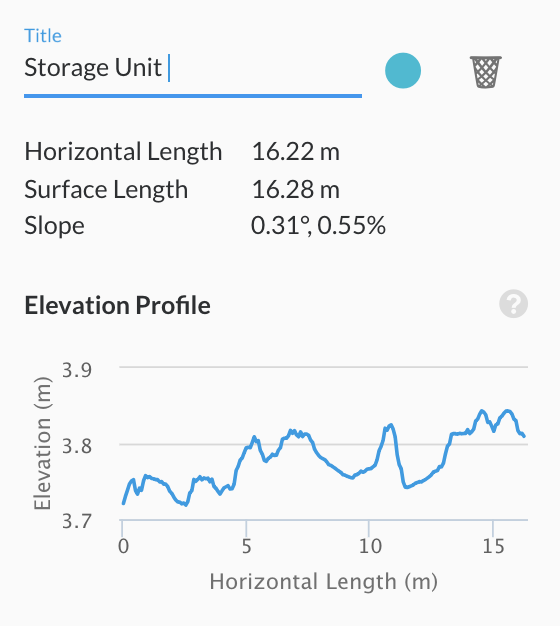
To use this tool:
- Create a line using the distance tool.
- Click on the line so you see the cross arrows.
- View the elevation profile in the map panel at the left.
Area Measurement
Selecting an area of interest, you can start highlighting the area you care about. Let's highlight the weeds in the field to the north:

To close the area, click on the first point, or double-click on your last point.
Every point you click on, will be adding to the boundary of the area in question. To close the area, click on the first point, or double-click on your last point.
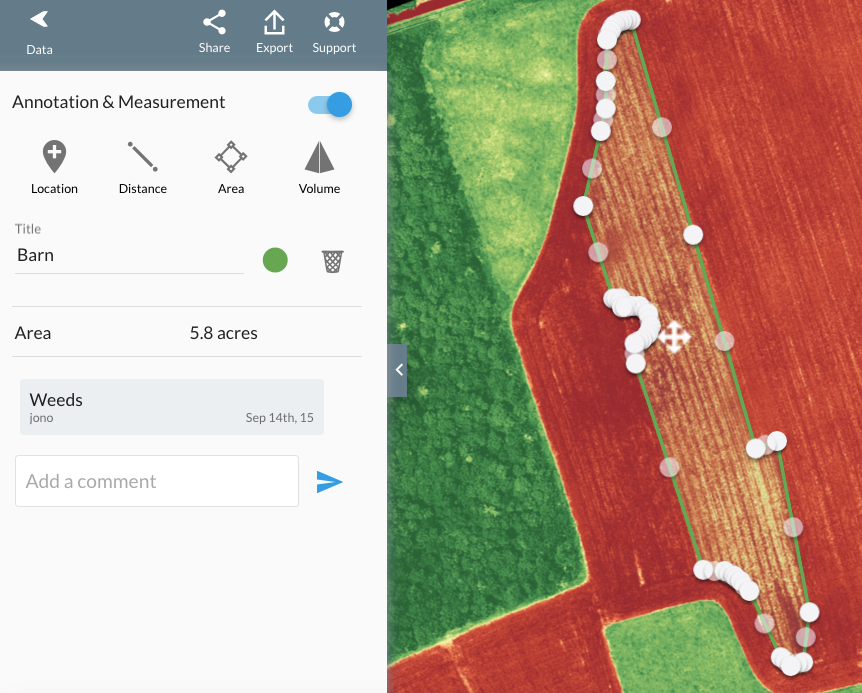
5.8 acres of weeds
Once complete, we can change the color and add text to remind us of what the area is. Here, the weed-filled area is 5.8 acres, as shown at the top of the note.
Surface Area
When you make an area measurement, we calculate both the flat 2D area and the 3D surface area.

Volume Calculation
Use our volumetric toolbox to analyze the volume of features on your map that have relevant 3D dimensionality. To learn more about volume calculation, please visit our Volume Measurement with Drones documentation.
Show/Hide Annotations
You can view a list of all of the annotations on your map by clicking the Annotation section in your side panel.
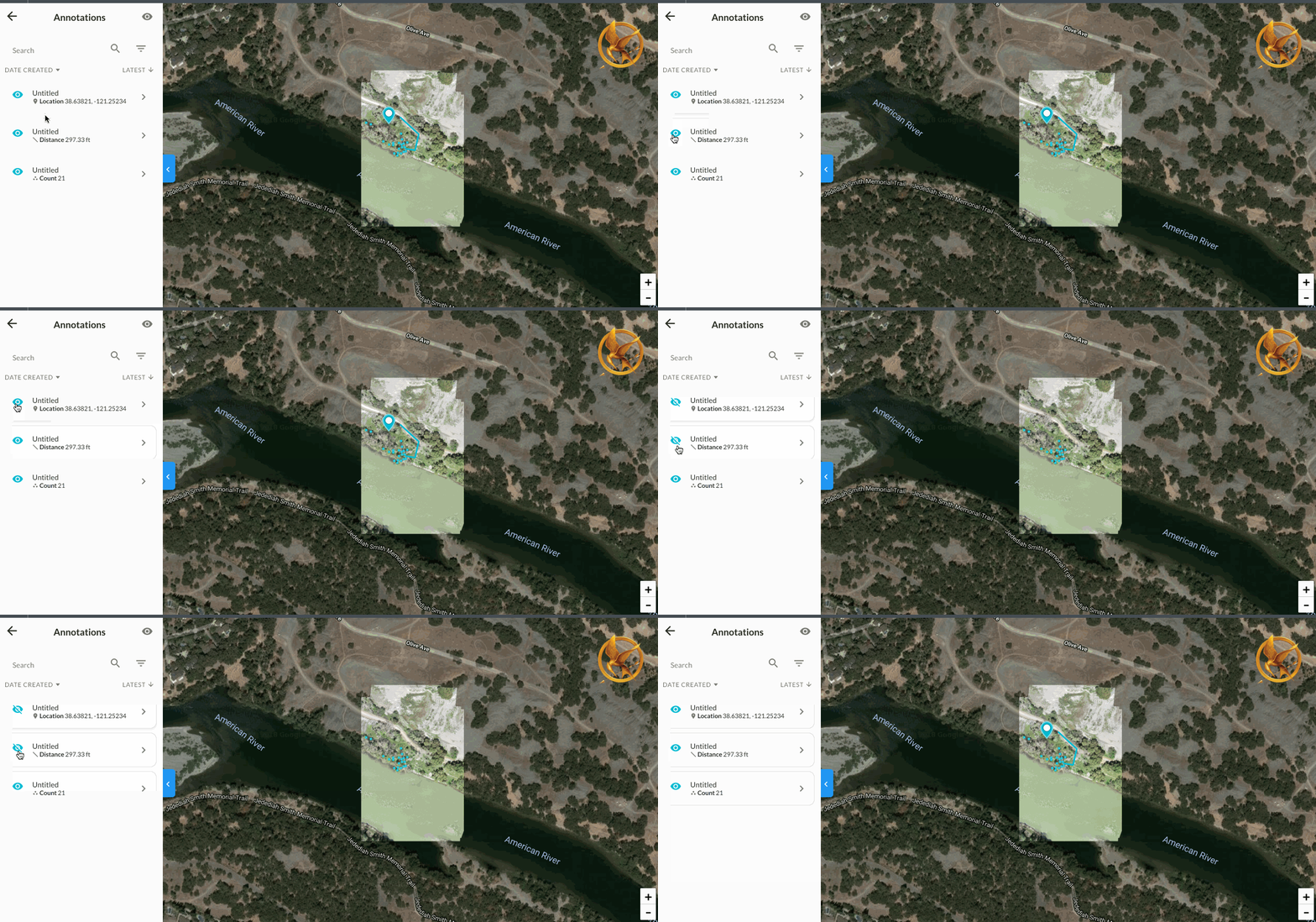
You can then select or hide specific annotations by clicking the visibility (eye) icons to hide and show all or individual annotations:
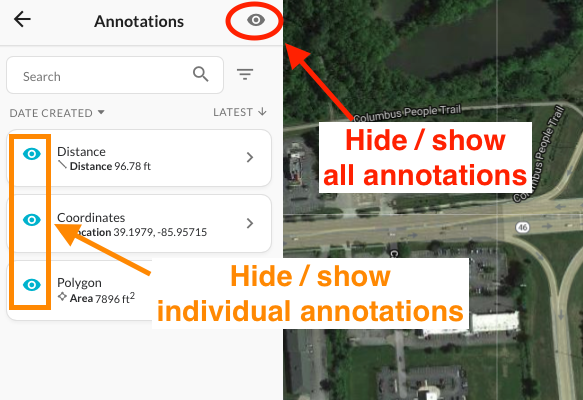
Visibility (eye) icons to hide or show annotation
Filtering and Sorting Annotations
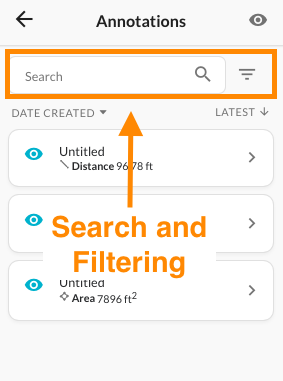
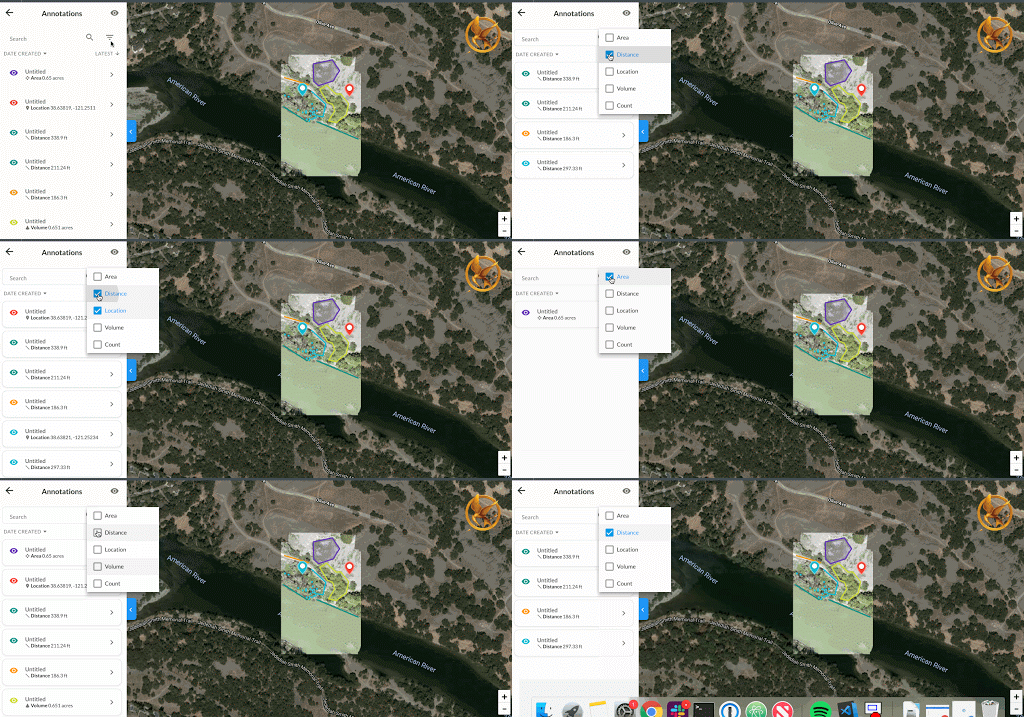
You can use the Search bar to look for specific annotations by title and use the Filter menu to filter annotations by type.
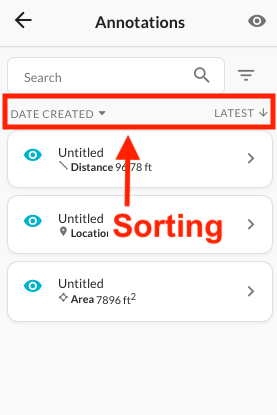
You can also use the Sort options to organize annotations according to date created or date modified.
Changing Annotation Color
If you'd like to change the color of your current annotation, click on the small colored circle in the sidebar to choose a different color:
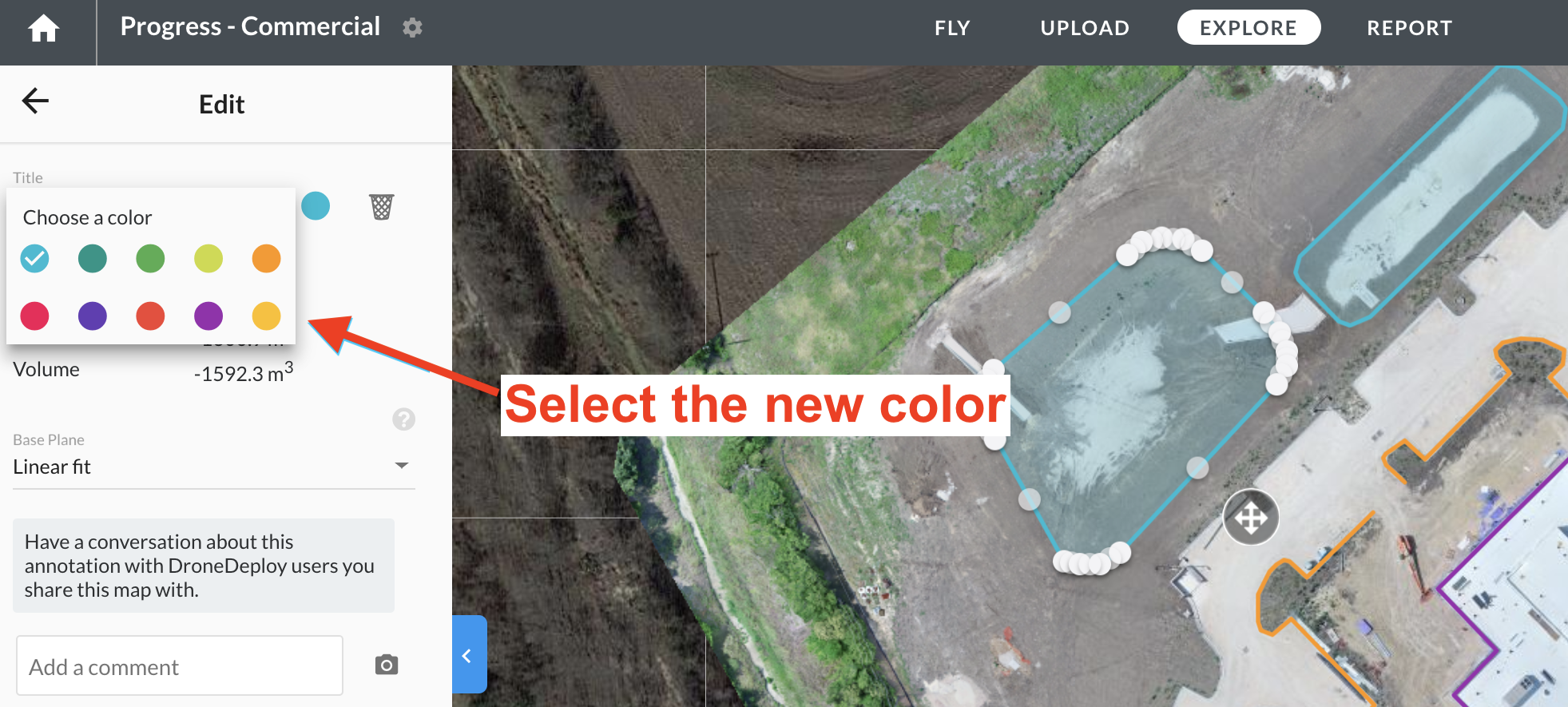
Select the new color you would like for your marker.
Sharing Annotations
This section deals with what happens when annotated maps are shared. To learn more about sharing, see our Data Sharing documentation.
Sharing privately
When sharing privately, other users can view, add and reply to existing annotations. This allows you to get external advice on a field, as well as highlight any issues you may find on other users maps. Other users can then create conversations around your data.
Please note that the visibility status of each annotation is currently saved to the map, meaning that if the user A turns off the annotation for stockpile 1 and then the user B goes and views the map, Stockpile 1 will still appear turned off.
Sharing publicly
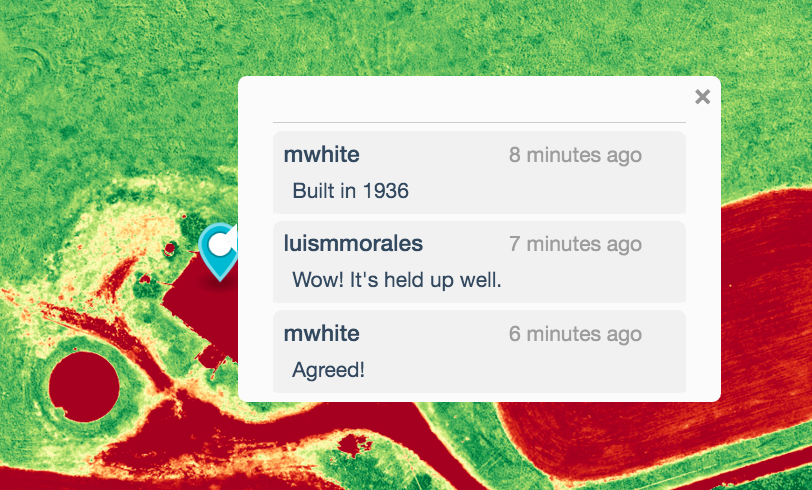
When sharing publicly others will be able to view your annotations, but these will be at a read-only level:
Deleting Annotations
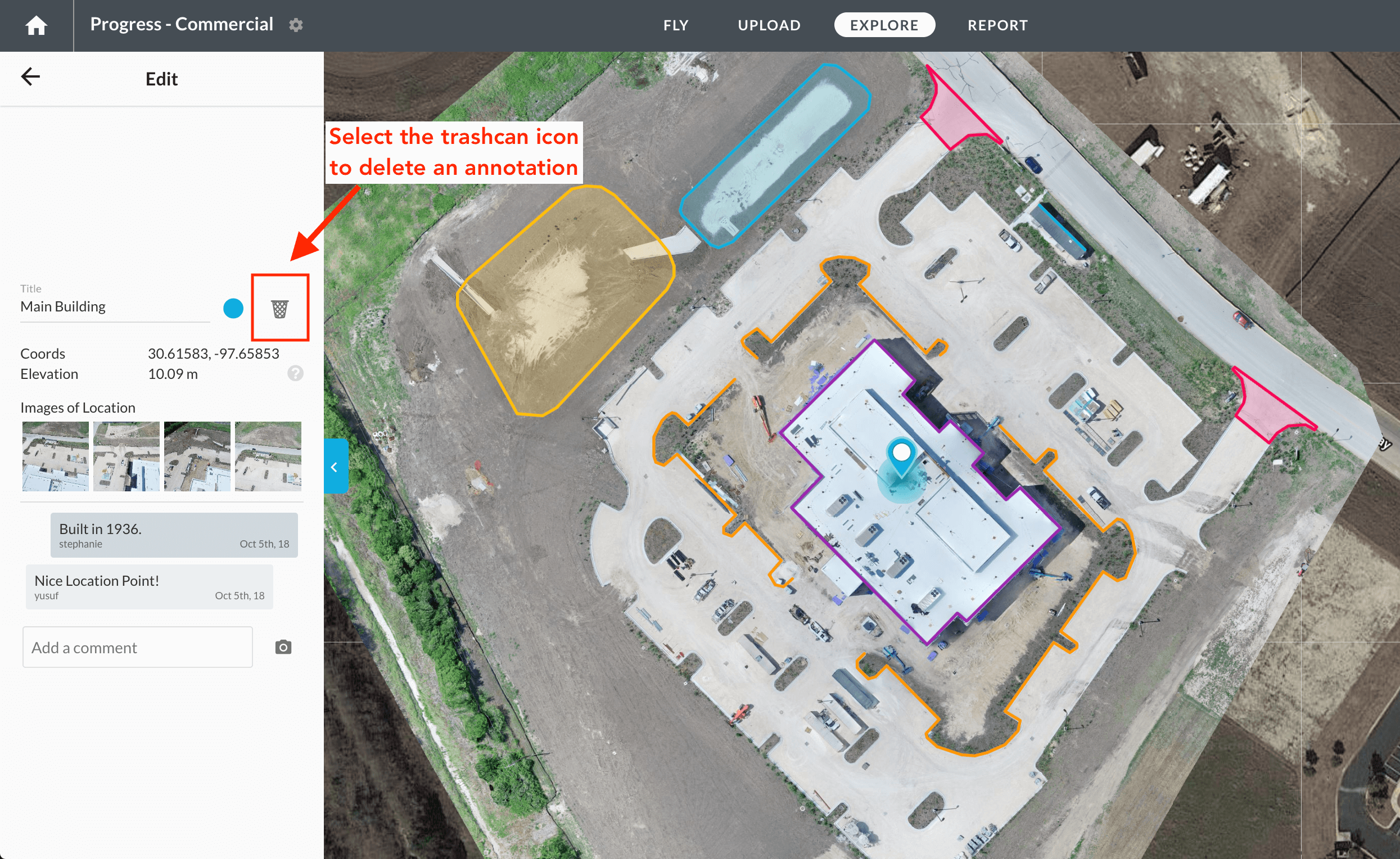
To delete an entire annotation (and all conversations therein), click on the trashcan icon on the sidebar:
Known Issues
When you place a marker outside the map boundary, the tool will show nearest 4 photos from the marker location. Ideally, the tool should report "No images found". In the future release, this will be fixed.
3D Annotations
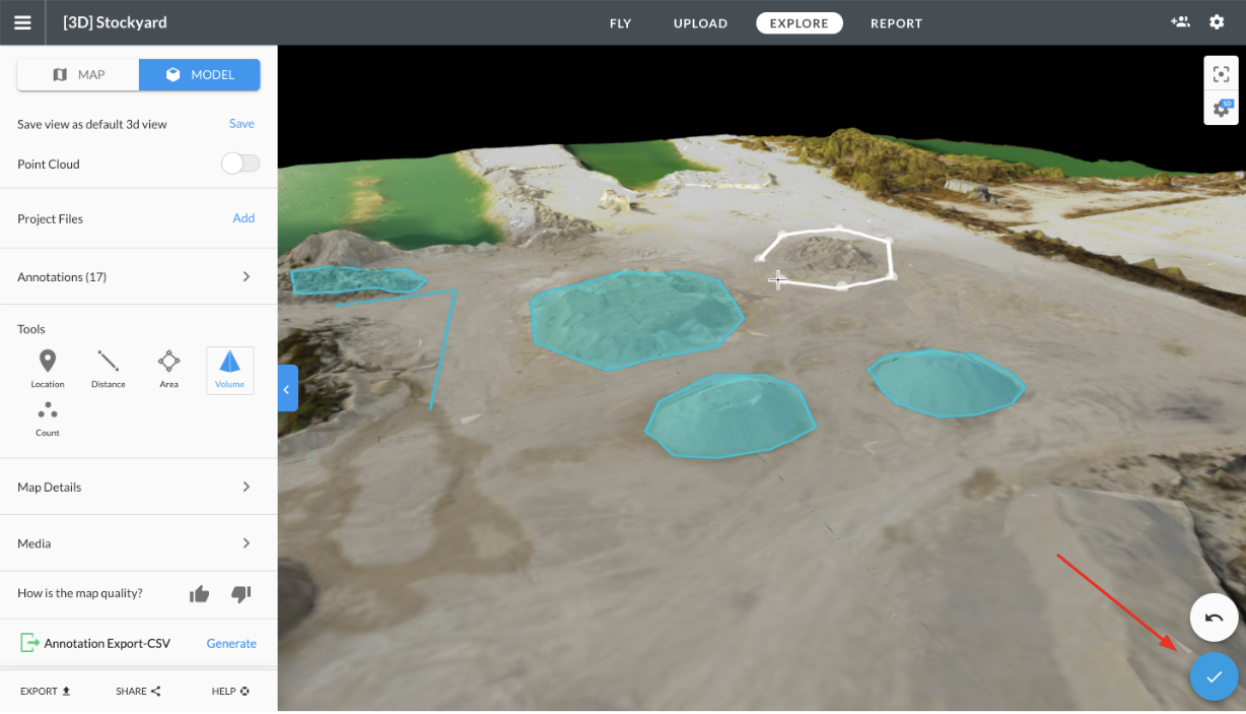
In DroneDeploy, you can view, edit and create annotations in either 2D or in 3D. Viewing and editing annotations in 3D can be a great way of verifying your measurements and making more accurate measurements selections when measuring 3D surfaces. For example, it’s much easier to understand whether you’ve accurately defined the perimeter of a stockpile for a volume measurements when you can see the perimeter in 3D and notice whether you’ve accidentally selected a point that is higher up on the pile than you intended.
Annotations viewed in 3D behave almost identically to when they are viewed in 2D.
To view annotations that you have already created in 3D, just click the “3D” button to view your 3D model. Your annotations will appear on the screen.
To select an existing annotation, simply click on it. Once selected, you can move the points on your annotation or change sidebar selections such as volume base plane and see the annotation rendering and measurements update accordingly.
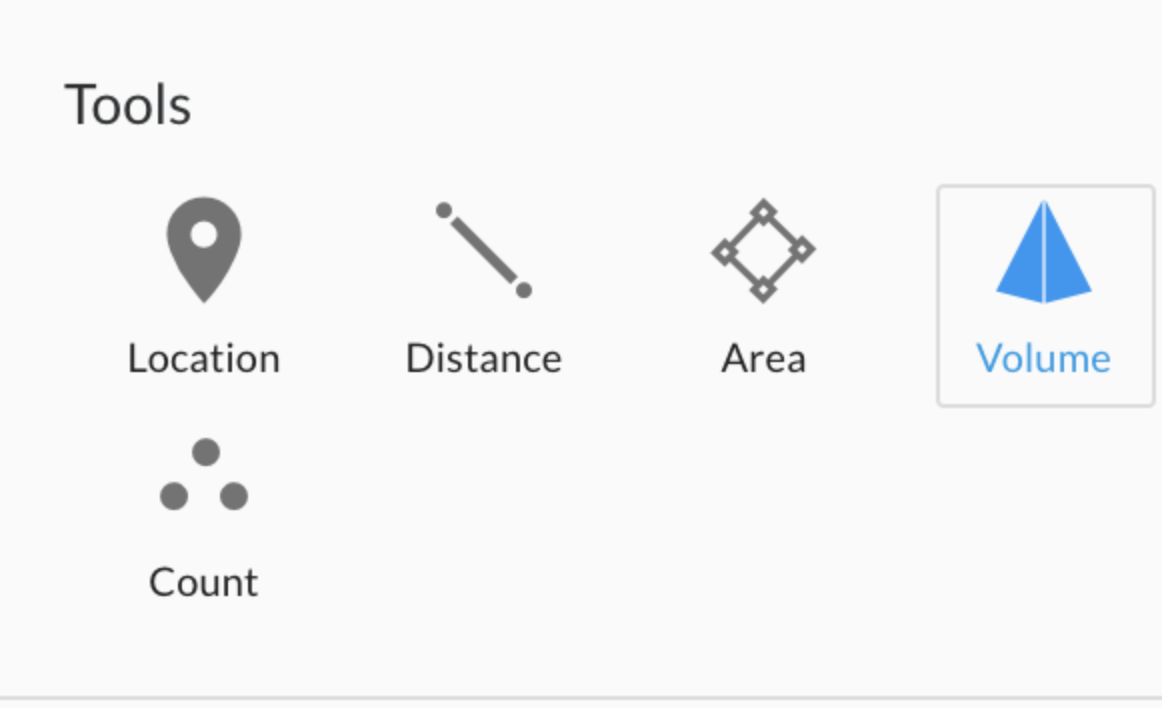
To create a new annotation while in 3D mode, first select the type of annotation you want to make.
Then begin clicking or tapping to define the points of your annotation. When you are all done, click the checkmark or double click your last point.