Table of Contents
The Admin Panel on DroneDeploy allows for Organization Administration in the following ways:
- Organization Settings
- Security Settings
- User Management (and user roles)
- Activity (or Audit Logs)
- Data (to view all data in your org)
- Application Management
Each section will be discussed in detail below.
Organization Settings
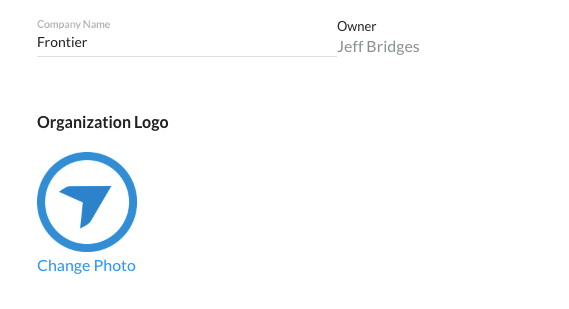
Under the Settings tab, you are able to:
- Change the name of your organization
- Change your organizations logo
- View the owner of the organization.
Security
In the Security Tab, you are able to:
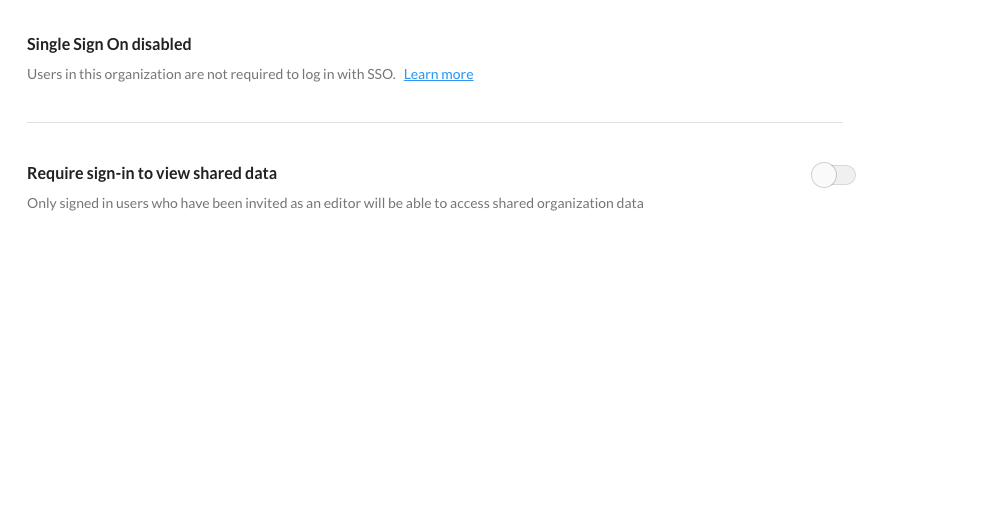
- View your SSO status (read SSO Documentation for more information)
- Enforce users to sign in to view shared data.
Require sign-in to view shared data
Only signed in users who have been invited as an editor will be able to access shared organization data. This effectively disables the ability to publicly share data in your org meaning you will be able to track who has access to your data at all times.
Managing Project and Folder level User Roles
In the User Management Tab you can:
- Add members to your organization
- Remove a member from your organization
- Manage User Roles:
User Roles
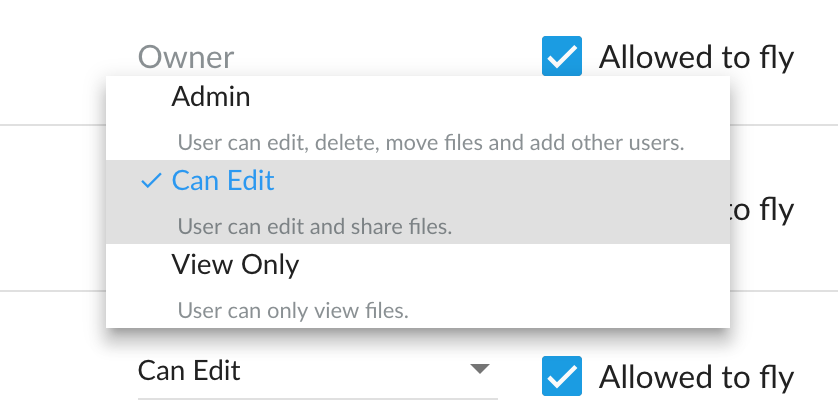
There are three options for a users's permission in DroneDeploy:
An Admin can add other users to the account, as well as create, delete and move data and Projects.
An Editor can edit, share, and delete data. This user cannot add or remove users from the organization.
A View only user can review datasets. They cannot process new datasets.
A Coordinator is folder/project level admin who gets admin privileges only to the project or folder they are assigned.
For more information, please contact your Enterprise Customer Success Manager.
Options for User Roles
Project/Folder Level Permissions
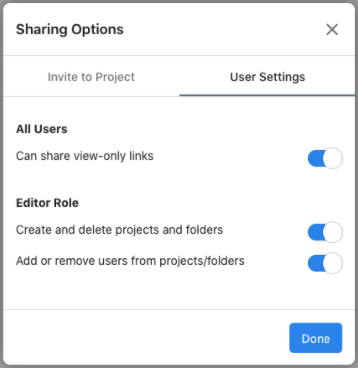
You can now also set specific user settings by project or folder hierarchy by clicking on the “User Settings” tab within the Sharing Options page of the folder or project.
You can set whether or not all the users will be able to share view-only links to people outside of the project/folders. You can also toggle off or on whether or not users assigned the editor role will be able to delete projects or folders and if they can remove add or remove users.
Changes on a parent folder will be inherited down the folder structure to projects and sub folders unless a folder or project has already been manually adjusted. The settings can be changed by another coordinator or admin as needed.
Coordinator Role
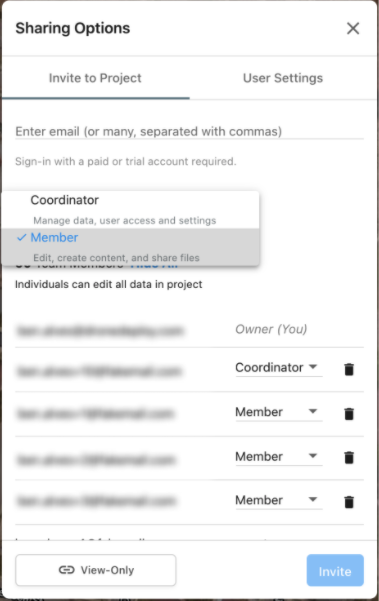
Within DroneDeploy you can now assign users the role of “Coordinator” to any user you would like to have admin permissions for specific folders or projects. You can think of “Coordinator” as a folder/project level admin. Coordinators will not have admin level permissions outside of the project/folder they are assigned.
Coordinators will be able to create sub folders, add or remove users, and add other coordinators within their folder hierarchy. They can also delete content within the project/folder hierarchy even if the asset is not owned by them. They can also move projects or the folder they manage (including sub folders and projects) to another folder they are shared on.
To assign someone the role of coordinator, click into the Sharing options page. If the user is already shared on the folder or project just change their role on the member list. If they have not been invited yet you can assign the role when you invite them.
Activity (or Audit Logs)
The activity tab shows:
- Who took
- What action on
- What Object Type with
- Which Name
- Additional Details on the action, and
- When it occurred.
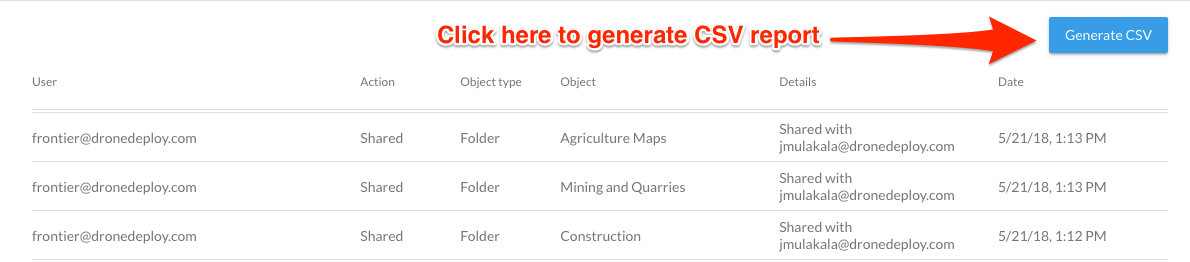
Actions tracked include:
- Flights flown
- Data sets uploaded
- Maps shared
- Maps deleted
- Maps exported
- Folders shared
- Folders deleted
Data Viewer
Allows you to see all the data in your organization regardless of who created it. These are ordered by the date most recently modified, and include the:
- Plan Name
- Owner
- Date Created
- Date Updated
- Date Processed
- Map Area
- Status
- Whether there are any shared users
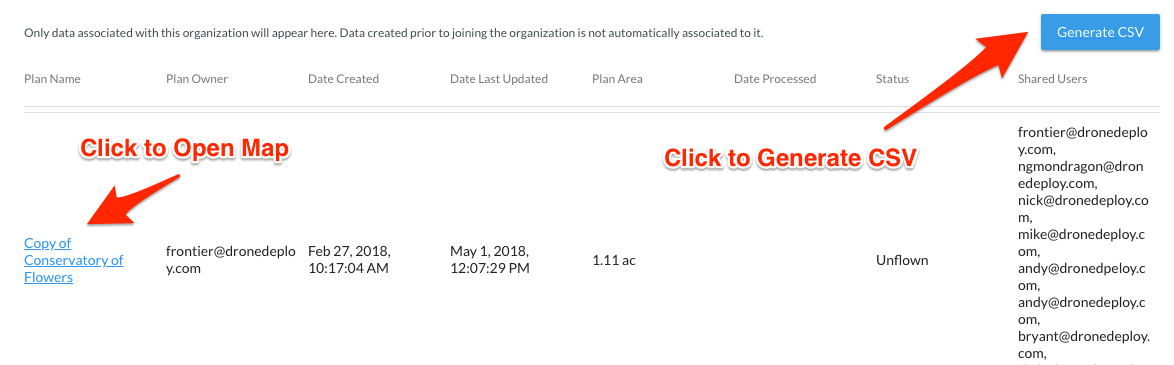
As an Admin user, you are able to view that data even if it hasn't been shared with you by clicking on the Name of the map. This will take you to the Data Page. If you'd like to see this map on your Dashboard, then add yourself as a shared user.
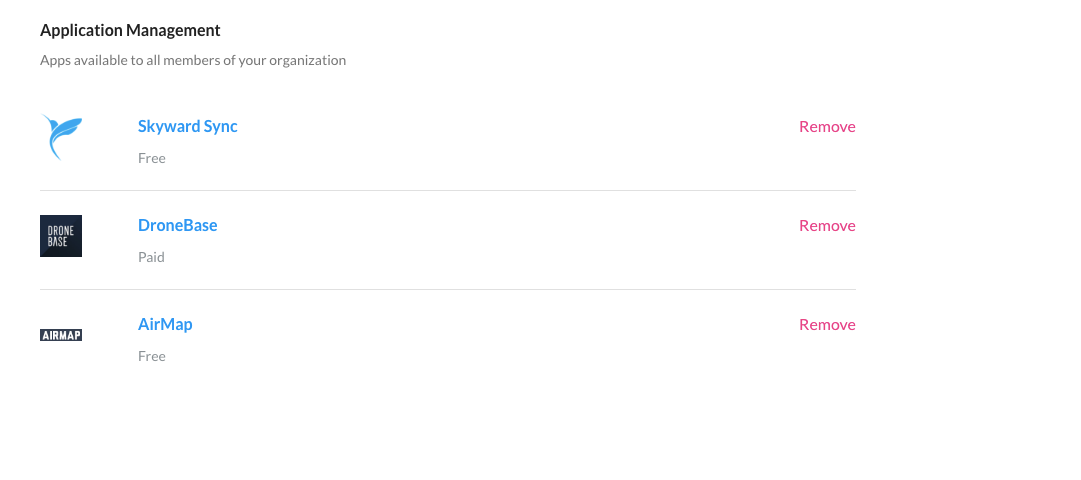
Application Management
In this section, an Owner or Admin can remove any applications they have installed for their entire DroneDeploy user base. If you'd like to add an app in your user base, you will need to do that in the app market (for more information read Installing Organization-Wide Apps ]