Check out our 6-minute overview video for a summary of this article:
To ensure your GCPs process accurately and efficiently, it's imperative DroneDeploy receives specific pieces of information for your project.
Please review this guide prior to adding GCPs to a map. GCPs that follow this guide should take 10-30 minutes to preprocess (Step 5) and 10-20 minutes to complete in-browser tagging (Step 6). Your GCP map will then immediately begin processing as normal.
Let's explore the workflow to process your GCP data using DroneDeploy in-browser tagging tool:
1. Add the GCP Information to your Map
Once you have selected your images (but before you start processing your map) select the Ground Control Points drop-down.
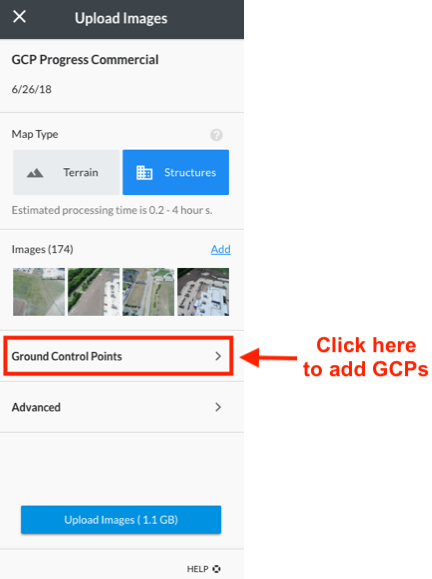
Use the "Ground Control Points" drop-down to add the GCP information
Upload the GCP .CSV file
You can download the GCP file template that better suits your needs and add your coordinates to the template. The template will contain example coordinates for you as a guide. You can also upload your GCP data in a .csv file directly but it must follow our required formatting. For more information, please read our GCP .csv File Formatting documentation.
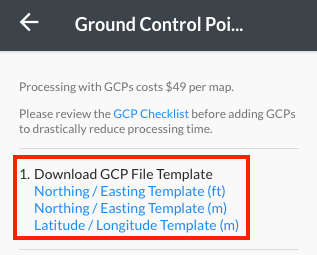
Download one of the GCP templates. make sure that your elevation units reflect the same units as your selected EPSG code.
Once you've added your GCP information to the template, save it as .CSV and then upload it into DroneDeploy.
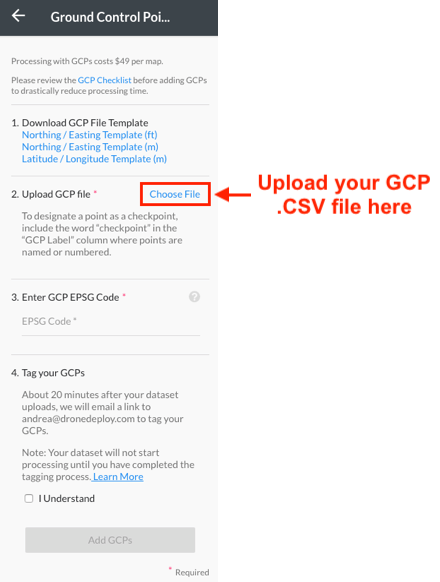
Upload your completed GCP Excel File into DD as a .CSV file
Type the EPSG code
Next, add your EPSG code. A full list of codes can be found at Spatial Reference. Again, most GCP maps are in WGS84 or one of the NAD83 (typically not HARN, CSRS, or NAD27) State Plane Coordinate Systems.
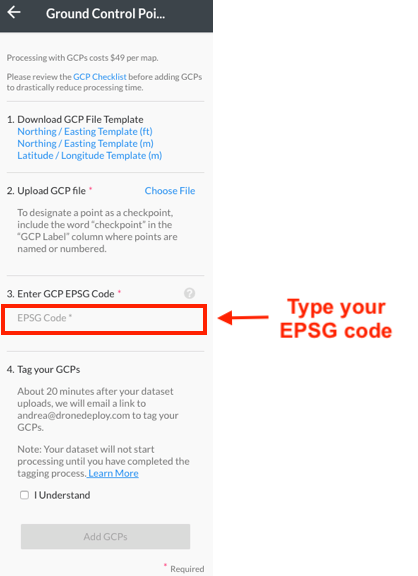
Type your EPSG code
Confirm GCP information
Once you have finished the above steps, click Add GCPs. You are now ready to start processing your images by clicking the "Upload Images" in bottom left corner of your screen.
2. DroneDeploy Starts Pre-Processing Your Map
DroneDeploy will begin pre-processing your GCP map. Once the pre-processing is complete you will receive an email that will take you to our in-browser GCP tagging tool.
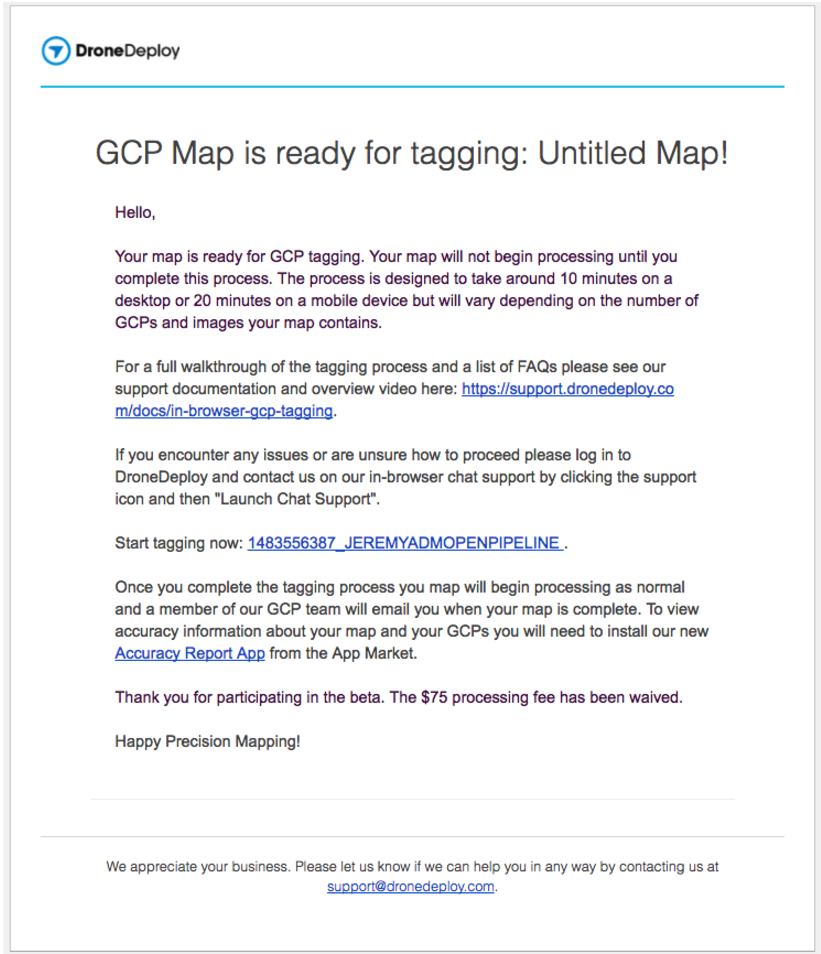
Example of the email notifying you that your pre-processing is complete.
Having a hard time finding the email? You can also go back to the Upload tab to see if your map is ready for tagging. If so, you'll see a cell telling you to "Tag GCPs". Click this cell to start the process.
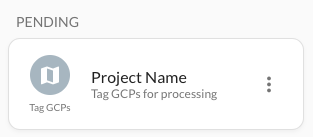
3. In-Browser Tagging: Verify your .CSV
If your GCP .CSV was successfully read by our auto-tagging tool then this step will be skipped and you will proceed directly to step 4.
If we encountered a problem with your .CSV or EPSG code, you will need to fix this data using our GCP .CSV File Formatting. Please see our GCP .csv File Formatting documentation for a full walkthrough of this process.
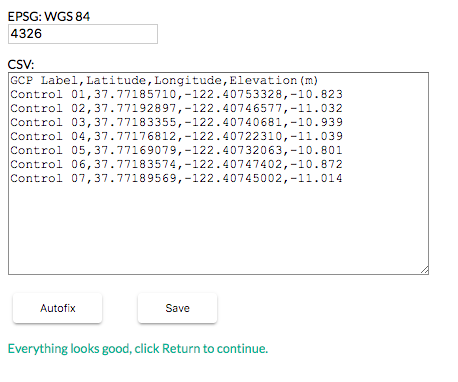
Here is what the GCP .CSV Editor will look like in your browser.
4. In-Browser Tagging: Primary GCP Identification.
Once your GCP .CSV has been accepted, you can start selecting each GCP point. To do this select the GCP you would like to start with and use the in-browser user interface to locate the GCP target.
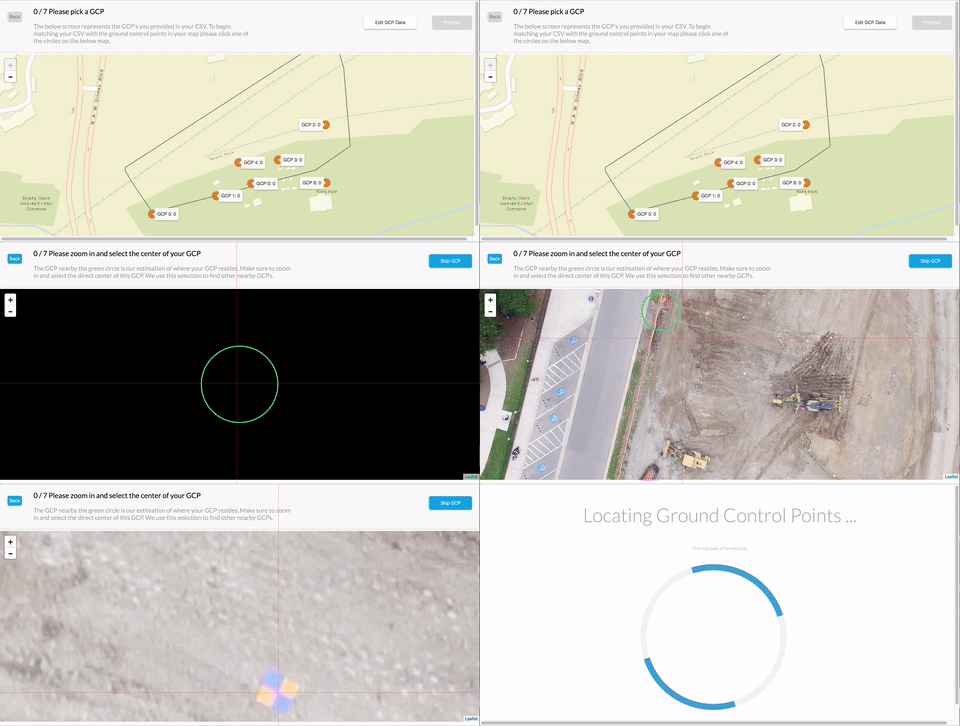
5. In-Browser Tagging: Secondary GCP Refinement.
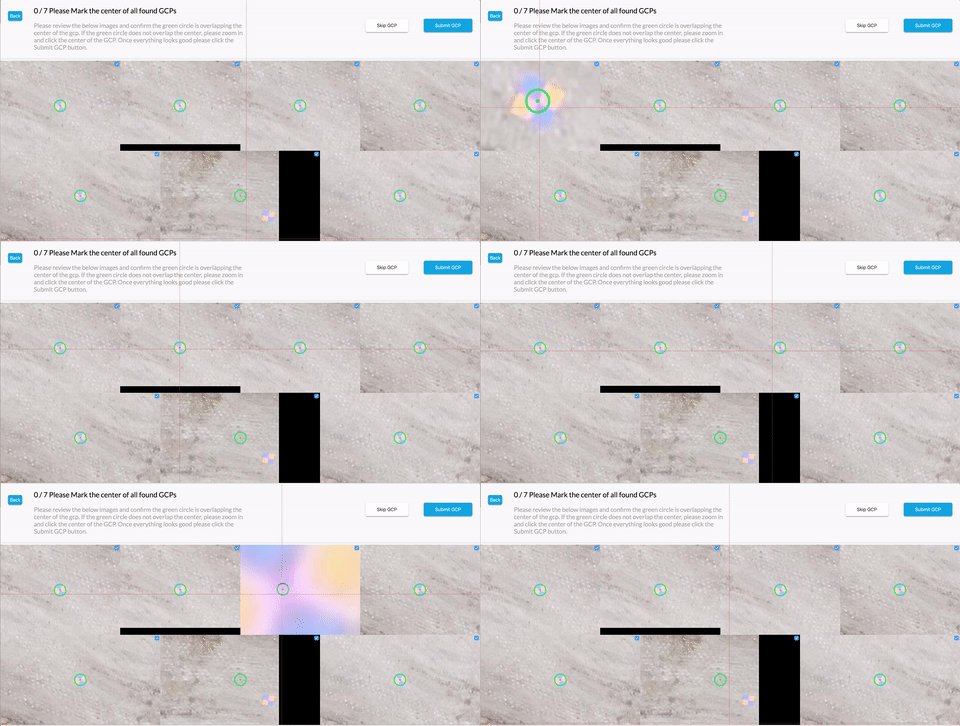
Once you have located and tagged the correct GCP target. You will be prompted to carry out a secondary refinement to make sure the exact pixel is selected. This is important to ensure the highest accuracy is achieved within the map. There will be up to 8 images validate in the secondary refinement stage. It is important to complete all of them to achieve the highest accuracy within the map.
If one of the markers is undetectable during the refinement you can exclude the marker by unchecking the blue square in the top right corner of the image.
Using Non-Conventional GCPs
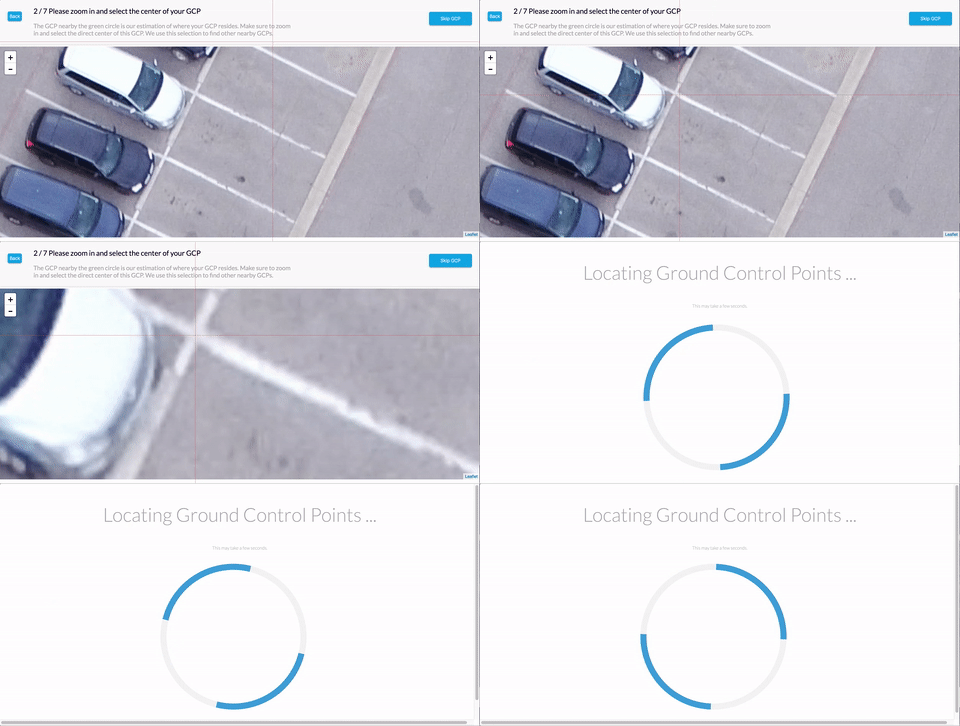
Because the GCP workflow allows the user to tie in their own GCPs, you can now use non-conventional targets within your map. This makes it much easier to show up to a site and utilize well-known features as targets rather than conventional targets.
How to Skip a GCP While Tagging
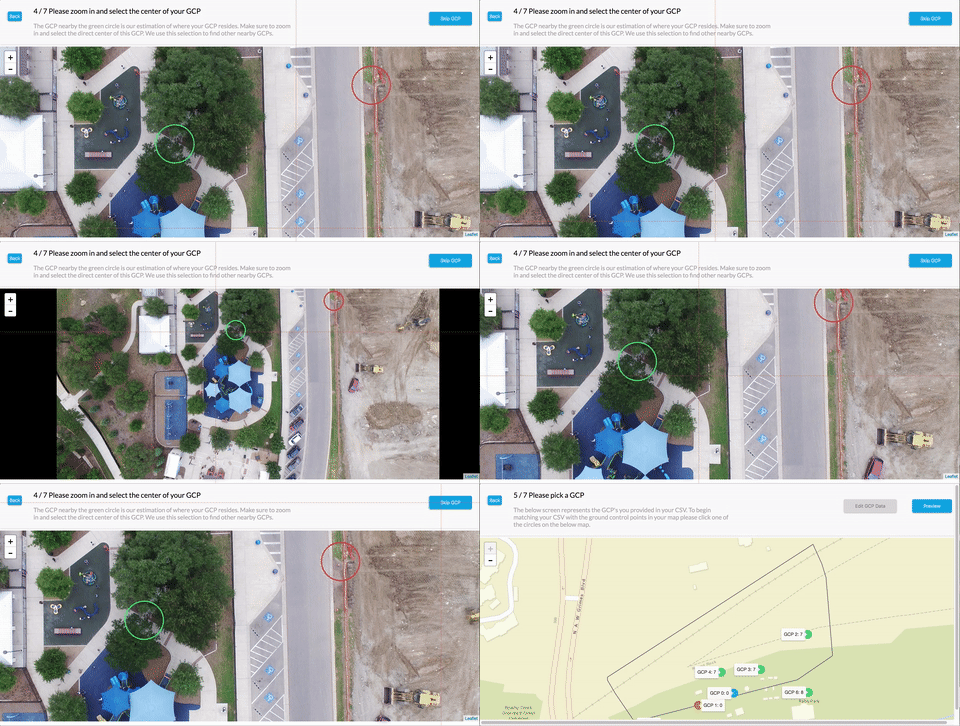
Because sites change frequently, sometimes a target will no longer be visible on an active project. If you need to skip a GCP you can do so by clicking on the "Skip GCP" in the upper right-hand corner during the initial workflow of finding the target within the map. This can greatly improve the accuracy of the overall map once it has been processed with GCPs.
6. In-Browser Tagging: Preview Markers
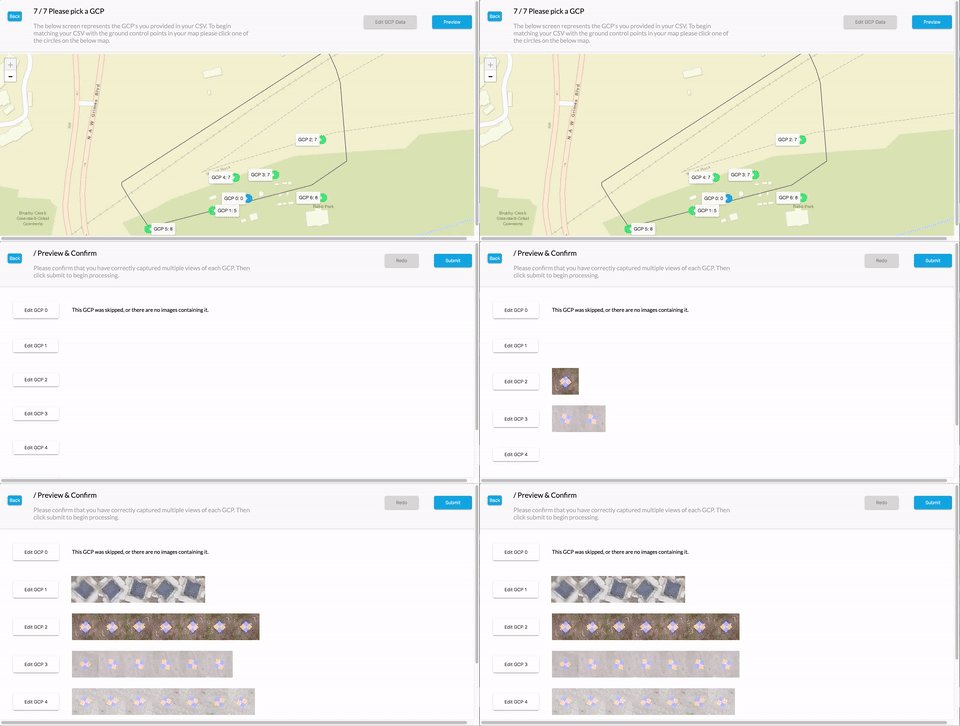
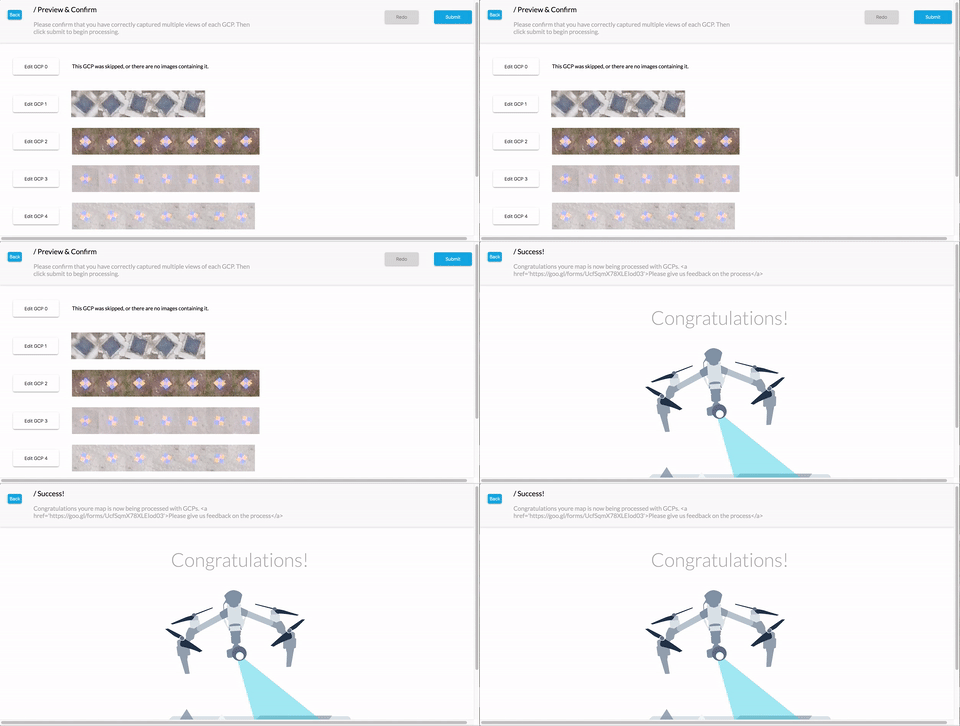
Once you have tied in all of the markers on the map, you can click Preview in the top right corner. This will preview how many tie points each marker selected has within the map.
It is not recommended to use markers that have less than 3 tie points. If you do have a map that has multiple markers with 4 tie points or less it is recommended to increase overlap and altitude within the area of interest being flown.
7. In-Browser Tagging: Submitting Your GCP Job
Once you have validated the tie points, press submit. That's it, you're done! You will receive an email once your map has completed the final steps to increase the accuracy of the map on our servers.
Give yourself a high five. Better yet, high five one of your co-workers! This stuff gets complicated quickly and you just nailed it.
8. Viewing your Results
Once your map has been completed, we will send you an email with a link to your map. You can generate the accuracy report of the finished map using the Processing Report found in Map Details.
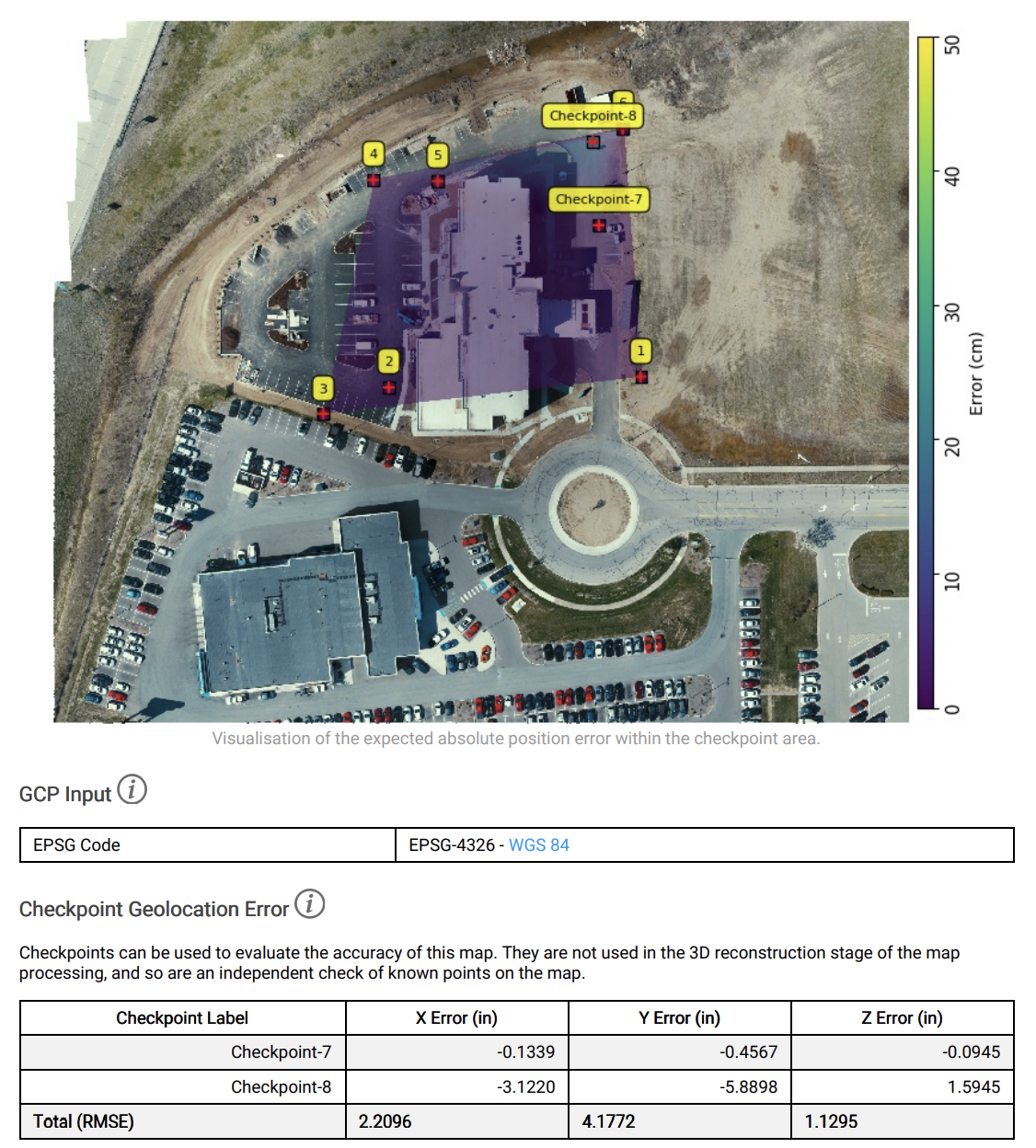
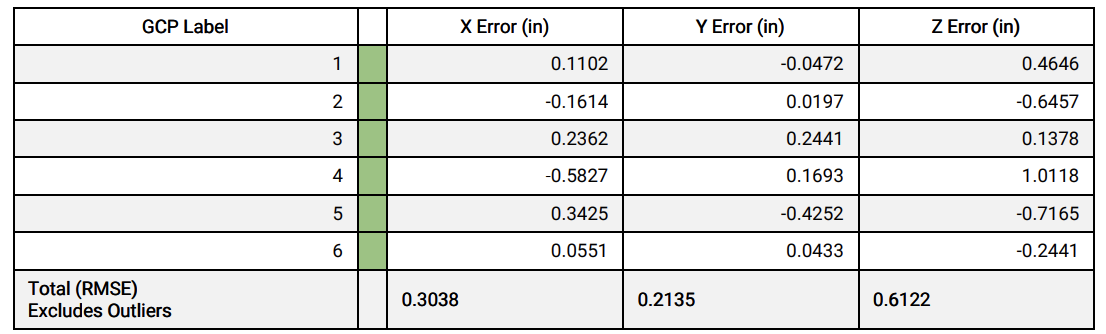
Your GCP map will be available on your account dashboard on DroneDeploy.com. Enjoy!