A Point Cloud is a 3D visualization made up of thousands or even millions of georeferenced points. Point clouds provide high-resolution data without the distortion sometimes present in 3D mesh models and are commonly used in industry-standard software.
Let's learn how to view your map's point cloud in-browser and how to export it for further analysis using third-party software.
Viewing Point Cloud within DroneDeploy
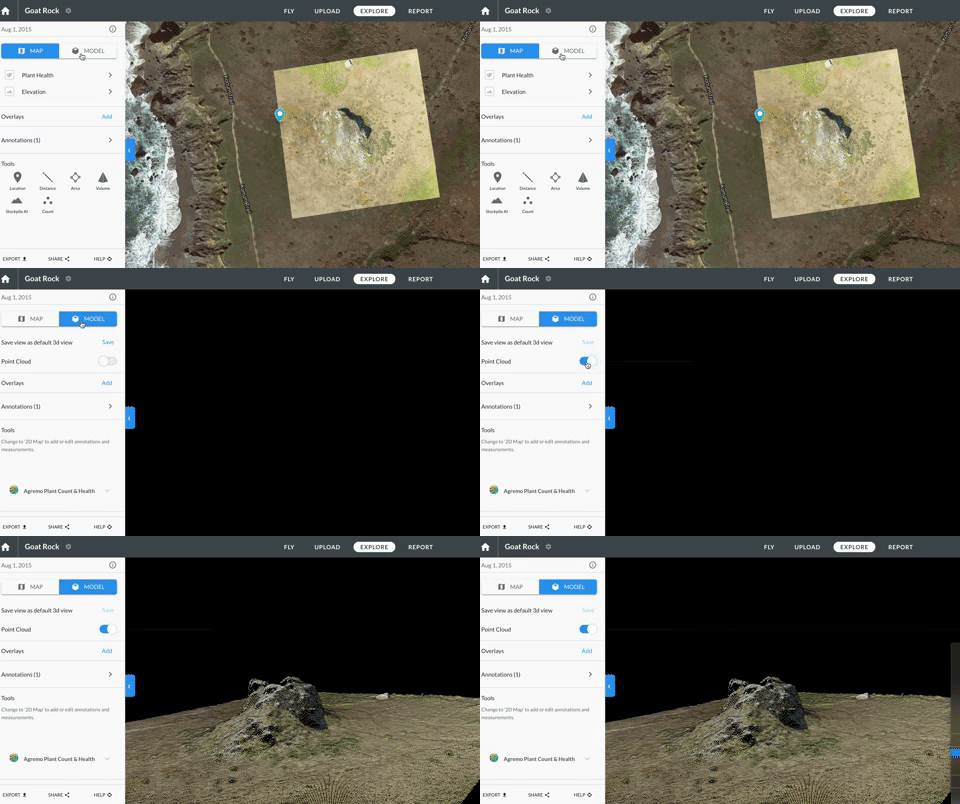
You can view 3D models as point clouds. To enable this view mode, click on the 3D model layer button:

and then turn ON the Point Cloud toggle.:

Navigating in the point cloud viewer environment
Using a 2-button scrollwheel mouse:
- Left click and hold to orbit model around centroid
- Right-click and hold to pan model
- Scroll wheel to zoom in and out
Using a touchpad
- One finger clicked down to orbit model around centroid
- Two fingers clicked down to pan model
- Two fingers sliding to zoom in and out
Viewing Point Cloud within DroneDeploy
Point Cloud Density
The multiple point cloud export formats are available here:
https://support.dronedeploy.com/docs/data-export-formats
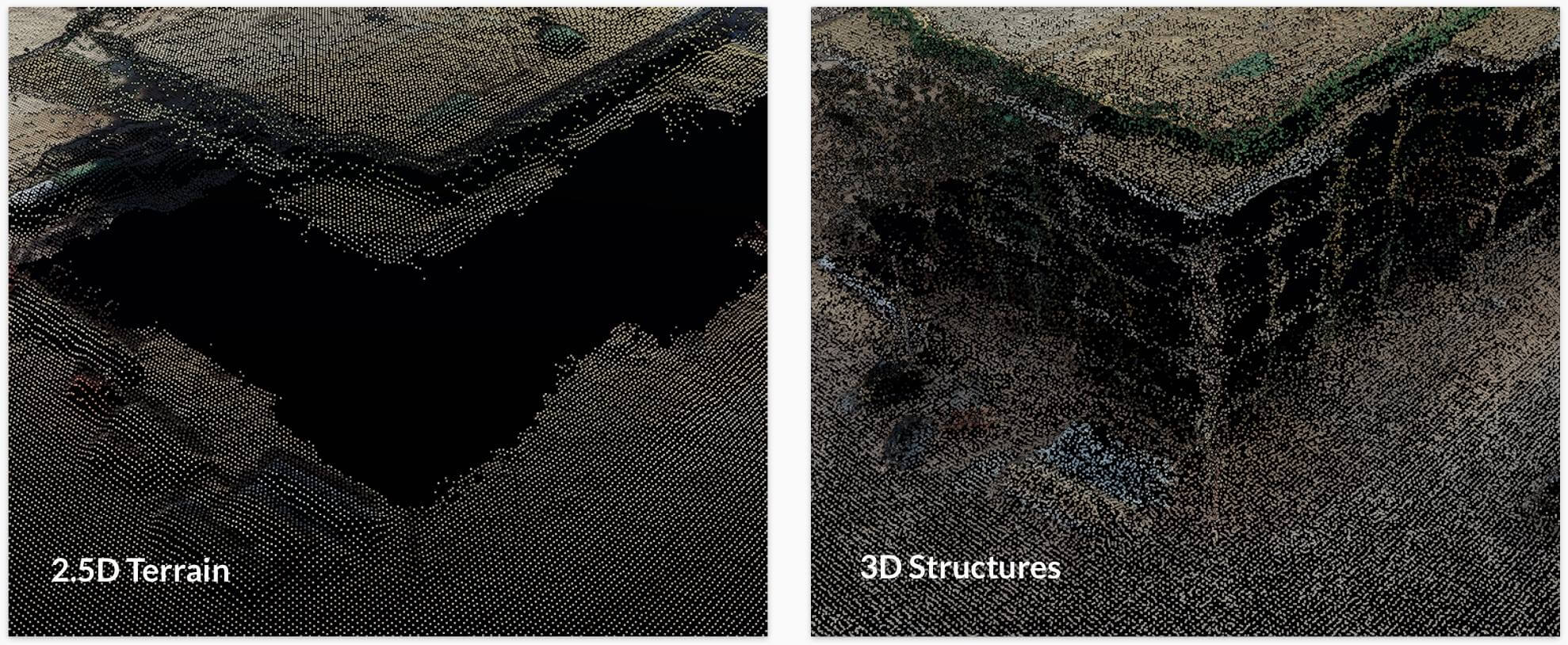
DroneDeploy offers two modes for processing - "Terrain" (2.5D) and "Structures" (3D).
Terrain mode is designed to generate surfaces that do not contain overhangs, for example open fields or mines sites, or at least where those overhangs are not material - for example when generating topology of a large area.
As a result, the density of "Terrain" point clouds is substantially lower than that of "Structures", and it contains no data in areas that are vertical, or beyond vertical.
Structures mode is designed for buildings, construction sites, and complex energy / utility facilities. The point cloud is 4x as dense, and data in overhanging regions is preserved. The cloud is filtered less aggressively too, so some spurious points may remain floating in 3D space.
One feature of our photogrammetry pipeline that you may not have seen elsewhere is that, particularly in our 2.5D "Terrain" processing mode, you'll see that points appear to form a grid. This is still the "raw" point cloud, and due to an internal method we use to determine the point location with high accuracy.
Exporting Point Cloud Data
You can export your point cloud from DroneDeploy as LAS, XYZ, RCP file format, let's learn how to do so:
To learn how to export your DroneDeploy data, please refer to our Exporting Your Data guide.
.XYZ point cloud
This is the most commonly accepted format for software in the Construction and Mining industries.
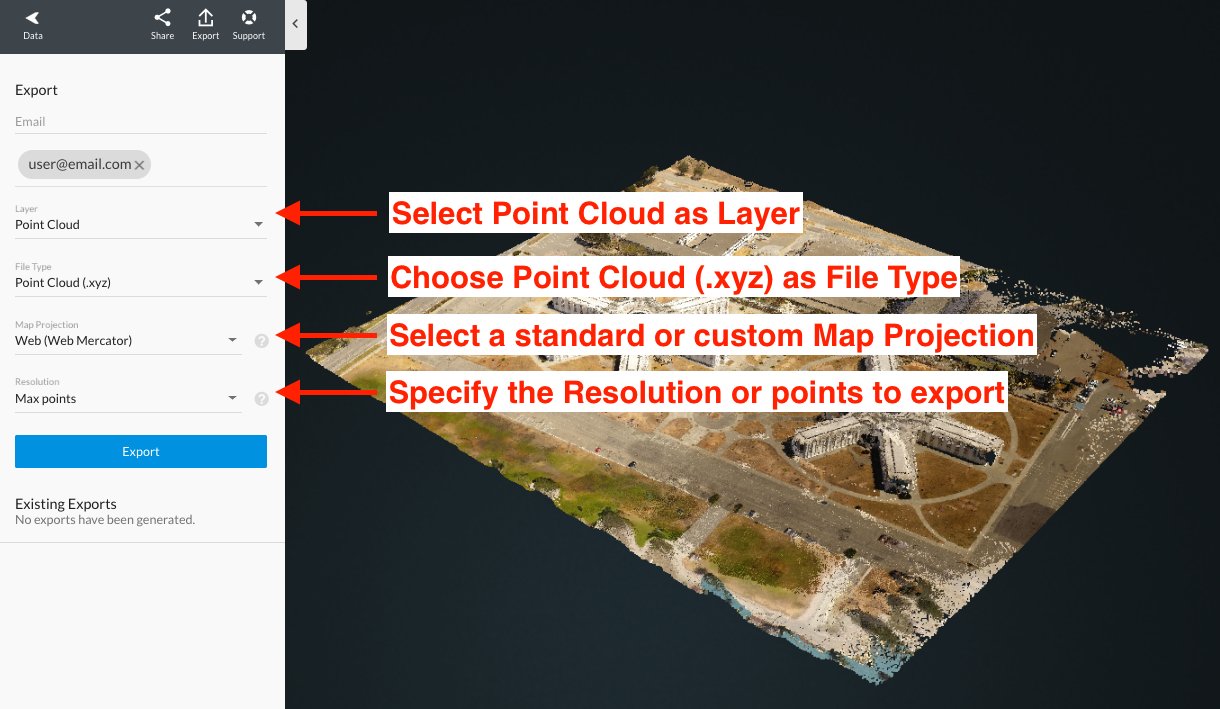
To export as .XYZ :
- Click on the
Exportbutton. - Select Point Cloud as Layer.
- Choose Point Cloud (.xyz) for File Type.
- If you want, select the Map Projection to export your point cloud. The file can be exported to standard WGS84 or Web Mercator or by using a Custom Projection System.
- Specify the maximum points for your export.
AutoDesk products may require an additional setting change when importing your .xyz file. Please see here for more information:
.LAS point cloud
.LAS files are another widely accepted format for GIS software such as ESRI ArcMap.
To export a .LAS file
- Click on the
Exportbutton. - Select Point Cloud as Layer.
- Choose Point Cloud (.las) for File Type.
- If you want, select the Map Projection to export your point cloud. The file can be exported to standard WGS84 or Web Mercator or by using a Custom Projection System.
- Specify the resolution for your export.
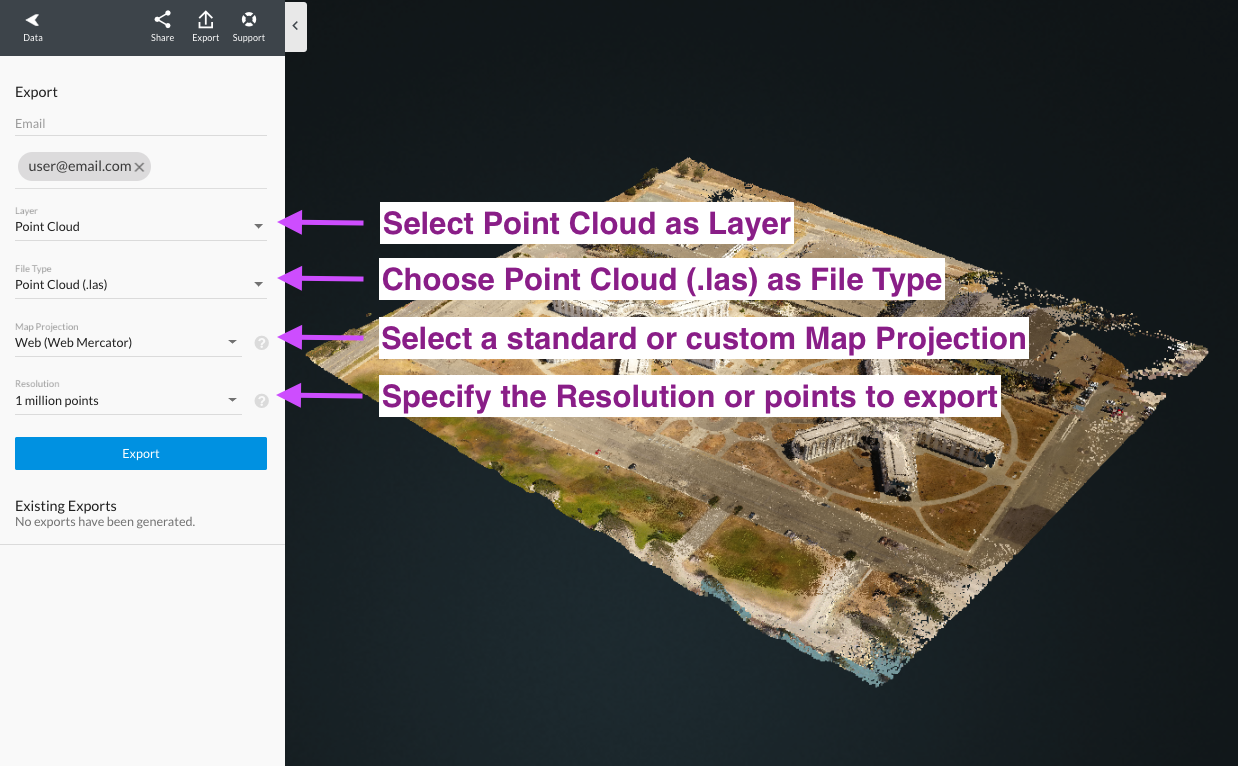
See here for information on using .LAS point clouds:
RCP point cloud
RCP is an AutoCad Specific File. Easily import your RCP export into AutoCAD.
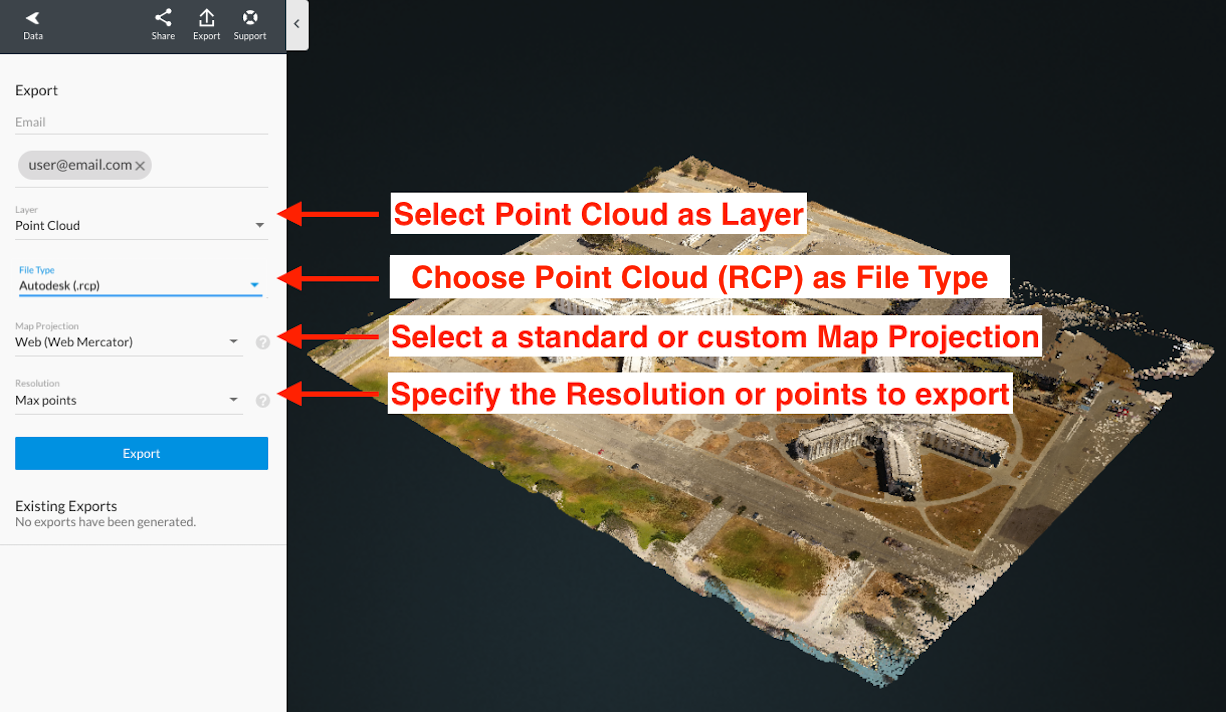
To export a RCP file
- Click on the
Exportbutton. - Select Point Cloud as Layer.
- Choose Point Cloud (RCP) for File Type.
- If you want, select the Map Projection to export your point cloud. The file can be exported to standard WGS84 or Web Mercator or by using a Custom Projection System.
- Specify the resolution for your export.