Understanding Elevation Data
Elevation maps within DroneDeploy are created using standard geo-referenced information embedded in your drone imagery. We are able to carry out some advanced math to figure out the elevations by looking at differences in perspective between two or more overlapping images.
By default, DroneDeploy maps show elevation data relative to your drone’s take-off location. If you want to view elevation data expressed in height above average mean sea level (MSL) or relative to your project coordinate system, you can either add Ground Control Points to your map or you can use the elevation calibration tool to easily adjust the elevations in your map in just a few clicks. Let's learn how to do so.
Please take a look at our Elevation Toolbox guide to learn more about DroneDeploy's elevation map.
Calibrate Elevation Data within DroneDeploy
In this tutorial, we'll be looking at the Example Data from the How to Process Datasets documentation.
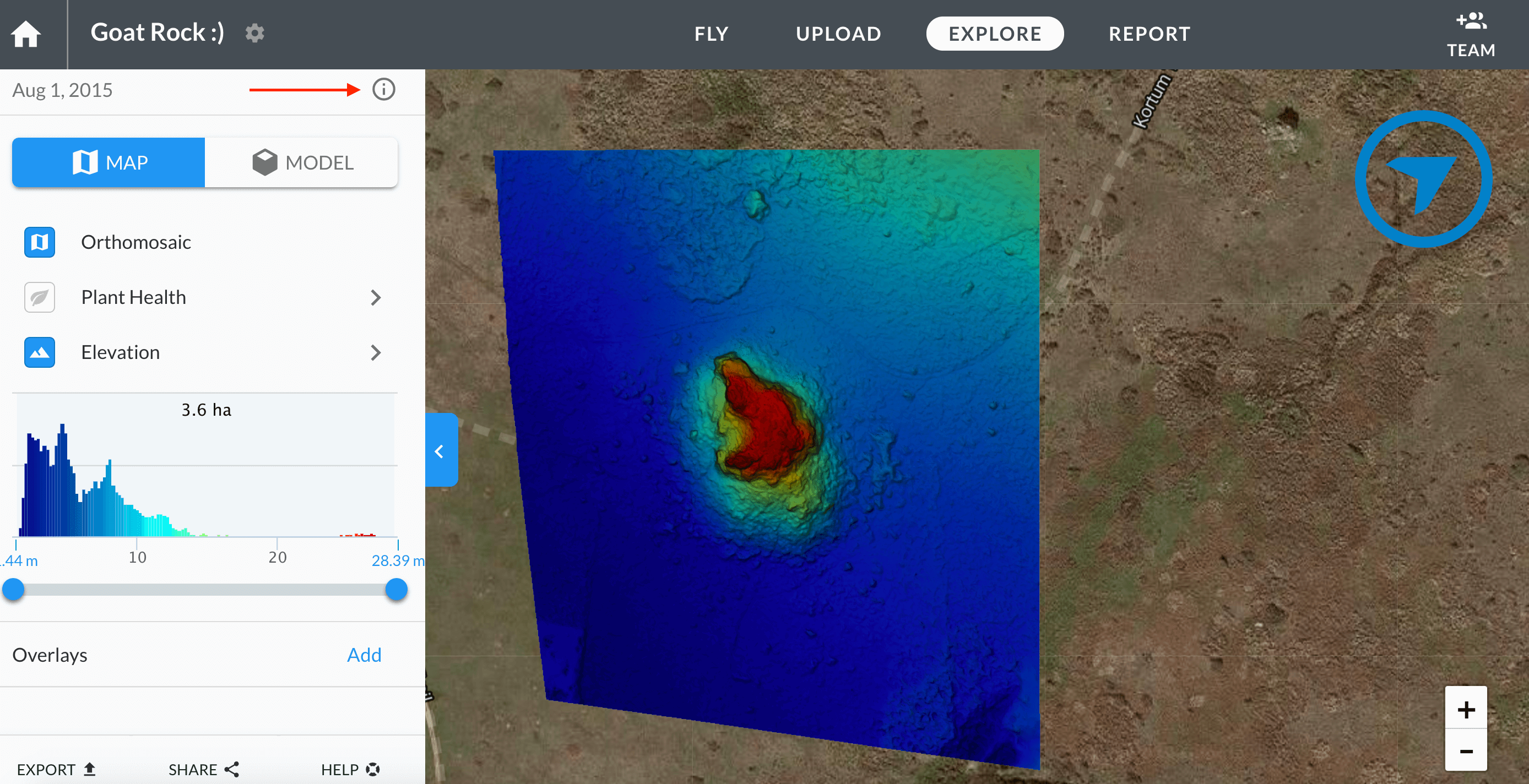
- To start, click on the map info button on the side panel.
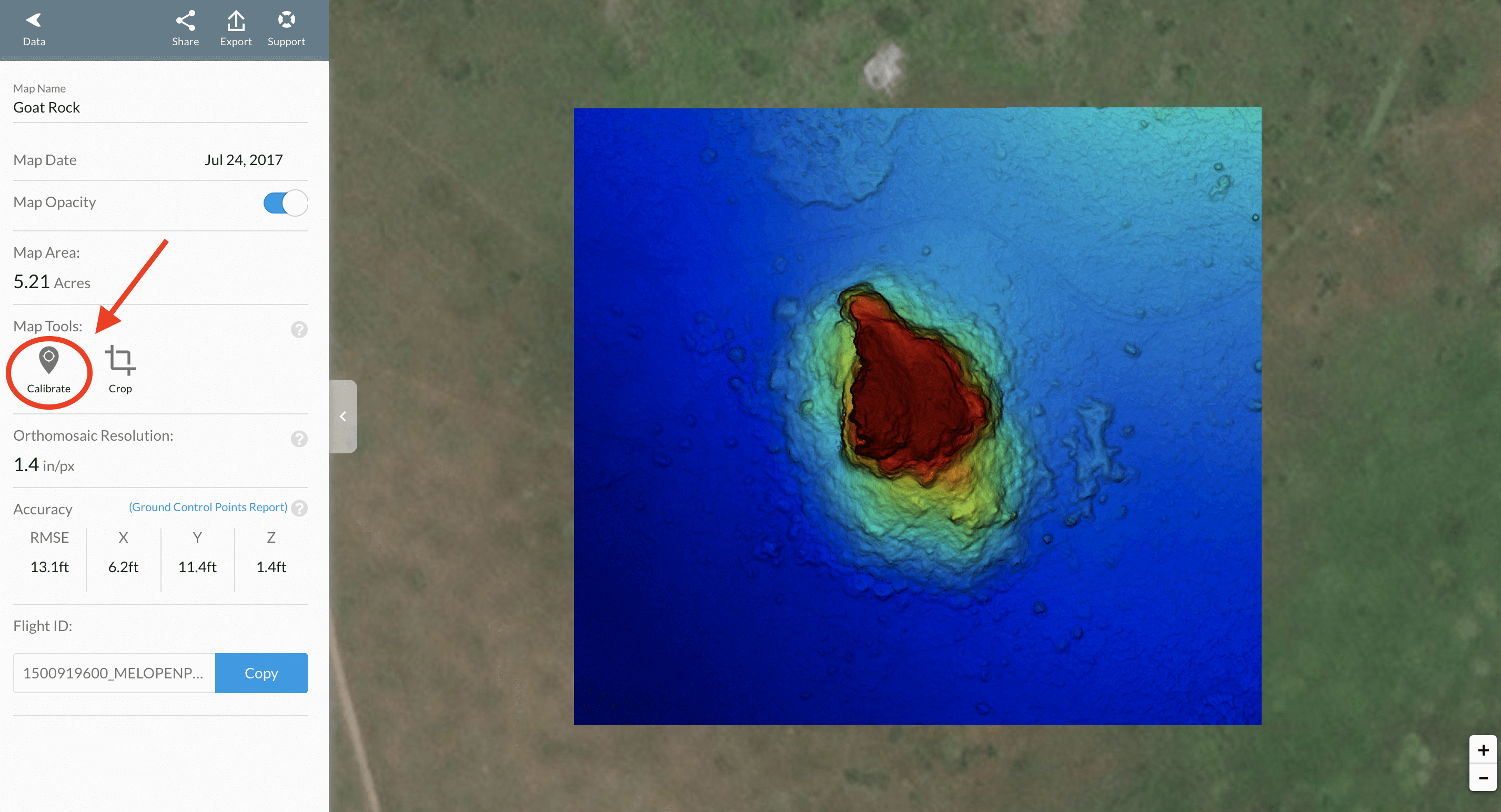
- Then, select
Calibrateunder the Map Tools section.
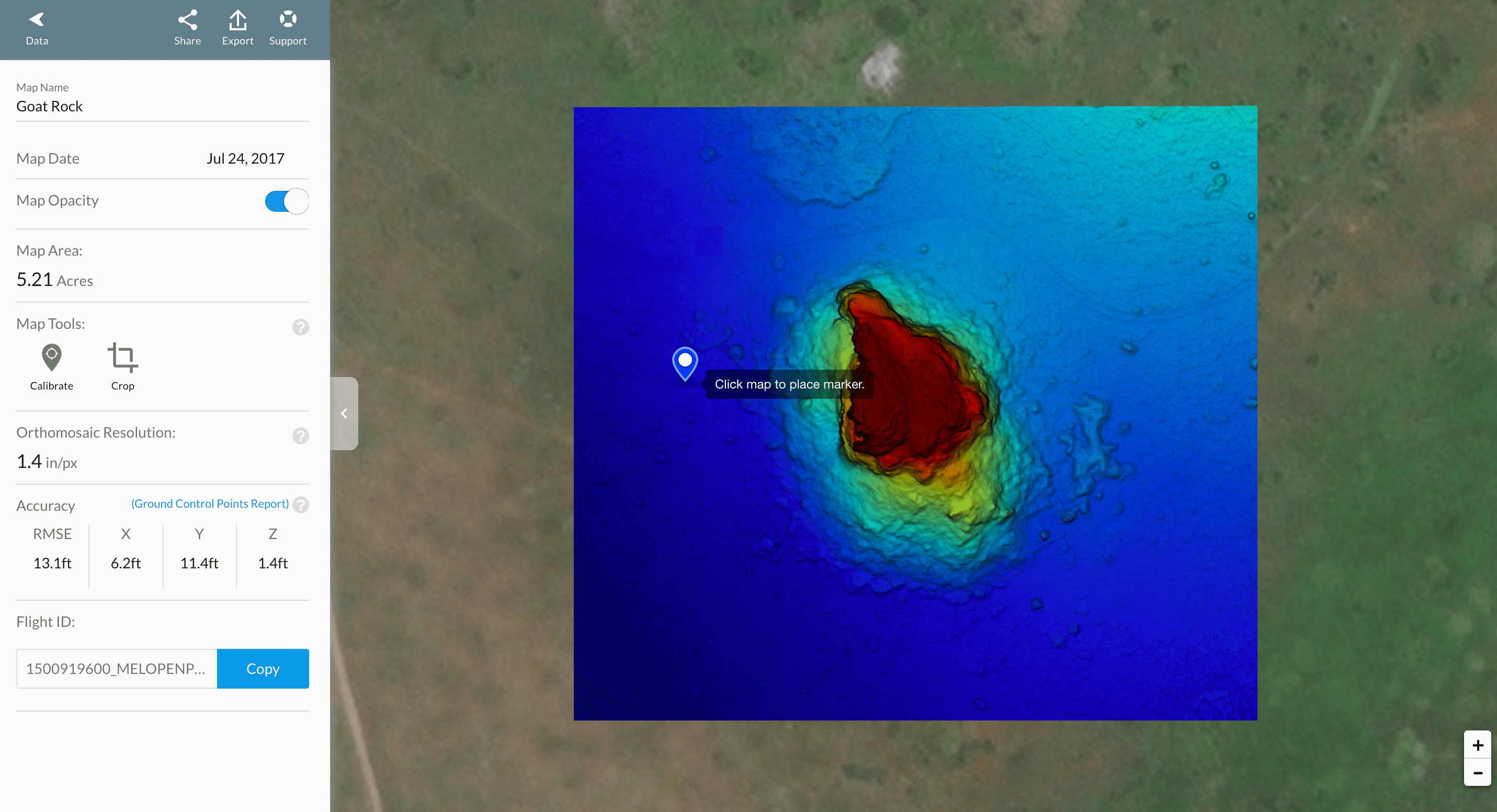
- Drag the calibration icon to a point on the map where you know the elevation. This could be a GCP marker, take-off point, or another recognizable point/feature on the map for which you know the elevation.
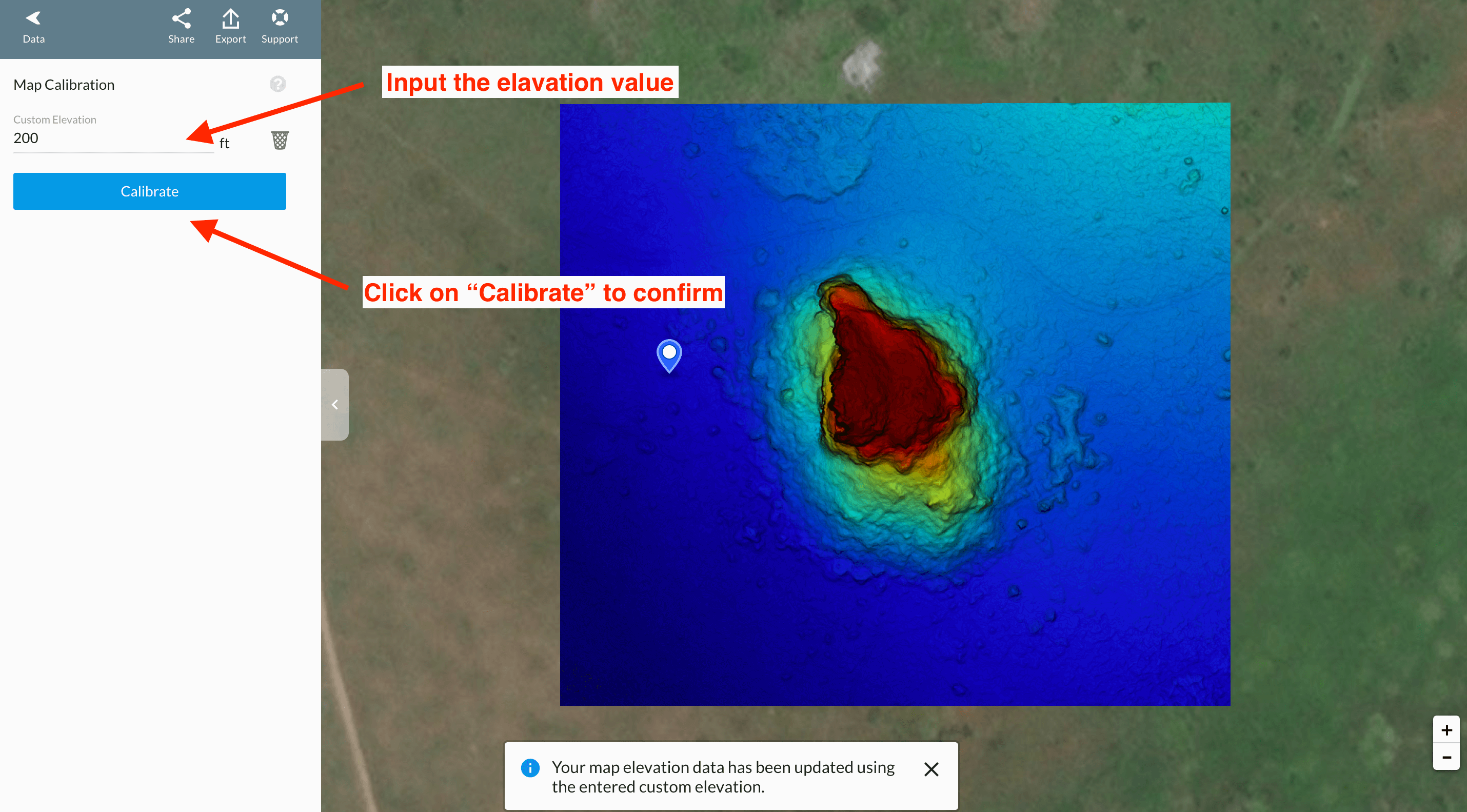
- Finally, enter the known elevation of the point in the
custom elevationbar, and click Calibrate.
You'll see a confirmation message at the bottom of the screen confirming that the elevation map has been updated.
All elevation data associated with the map will be adjusted using the difference between the default elevation and the entered calibration elevation of that specific point. The results would be reflected in the elevation histograms, elevation visualizations, measurements, and exports.
Remove the Calibration
To remove the calibration and return to the default elevation values relative to the drone's takeoff point, click on the trashcan icon next.
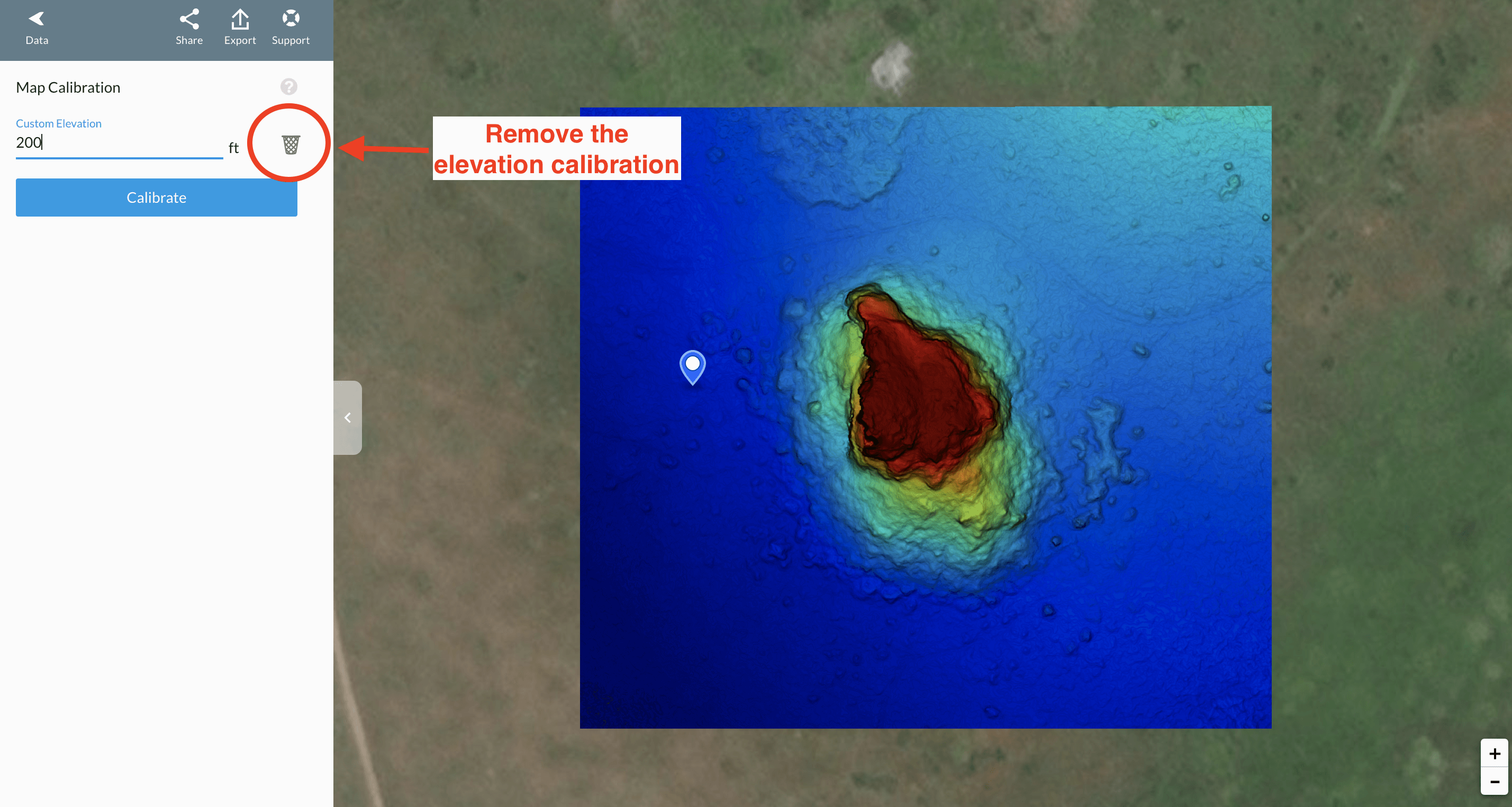
A confirmation message will show up confirming that your elevation calibration has been removed.
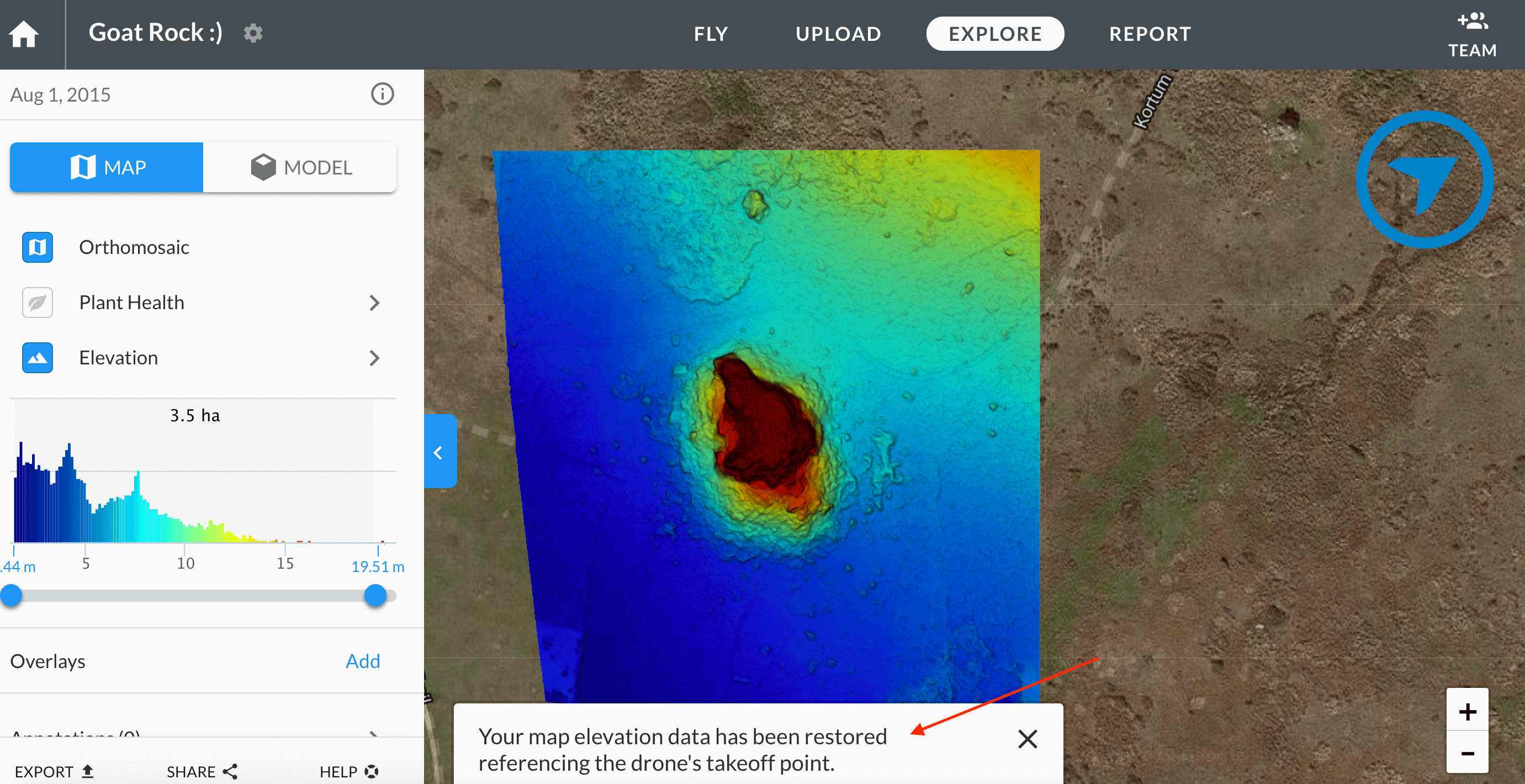
Enjoy your calibrated elevation map!